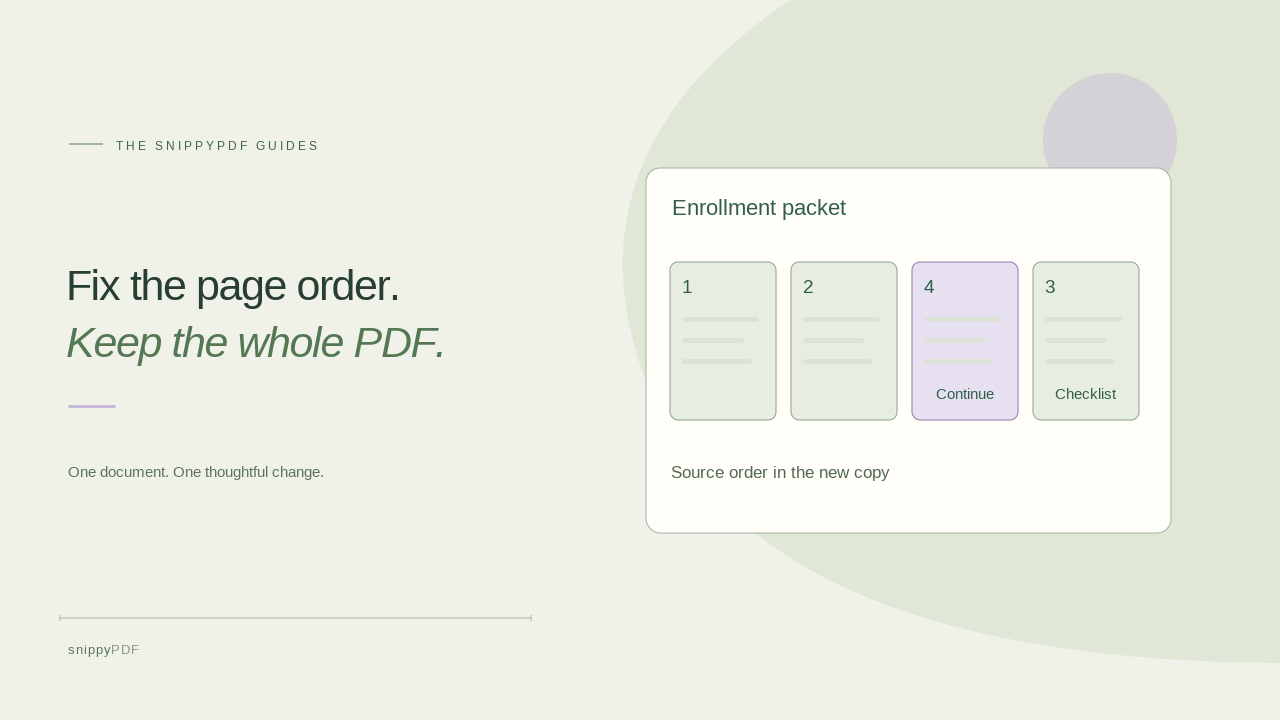
Put the pages of a scanned packet back in order, save the whole PDF, and verify the sequence in the download.
Write down the order you need
Imagine you scanned a four-page school enrollment packet. The cover and first page are already in place, but the second page of the questionnaire ended up behind the final checklist. Open the PDF and write down the order using the page positions in the file. In this example, you want 1, 2, 4, 3. Check headings and opening lines if the printed numbers restart in each section.
Move the questionnaire page into place
Open Organize PDF and add the scan. Find the fourth thumbnail and confirm it shows the questionnaire. Use Move up page on that thumbnail once, so it sits between the first questionnaire page and the checklist. For a move of several positions, follow the thumbnail for the same source page as the list updates. This workflow accepts compatible static PDFs up to 25 MB per file. Preserve the original if it is digitally signed, encrypted or interactive.
Save the full packet in its new order
When the thumbnails match your list, choose Merge / save all pages. The export follows the displayed order and creates a new PDF. Choose a distinct filename such as enrollment-packet-in-order.pdf. The trial adds watermarks. An eligible paid pass or discount enables a clean export. Keep the original if its annotations, links or accessibility tags matter, since rebuilding the pages can drop those features.
Check the transitions in the downloaded file
Reopen the download and count four pages. Read the end of the first questionnaire page and the start of the second. Confirm that the checklist comes last. If the packet will be printed double-sided, check the front and back in print preview as well. The reorder operation moves entire pages and preserves their visible content. If a sheet is sideways, handle its orientation separately before exporting the final copy.
See supported PDFs · Try the watermarked editor preview
More practical guides
- How to make a photo appendix for a PDF quote
- How to check a photo PDF before printing
- How to replace one page in a PDF
- How to copy text from one page of a scanned PDF
- How to remove a blank page from a PDF
- How to recognize English and Spanish text in the same document photo
- How to split selected PDF pages into separate files
- Turn a paper checklist photo into a PDF you can reuse
- How to rotate one page in a PDF and save the change
- How to insert a photo page into an existing PDF
- How to put front and back photos in one PDF
- How to extract nonconsecutive pages into one PDF
- Make document photos searchable in a PDF without rewriting the page
- Fix sideways document photos before making a PDF or running OCR
- Edit grouped text in a PDF online: a fictional DoorDash receipt example
- A4, Letter or Fit image: which PDF page size should you choose for photos?
- How to check numbers after turning a document photo into a PDF
- How to turn iPhone HEIC photos into a PDF without converting them first
- How to type on a blank line in a PDF without changing the sentence
- How to make a working copy of a scanned PDF without losing your original
- How to photograph a paper document for a readable PDF
- How to make a photo-heavy PDF smaller and check the result
- How to turn PDF pages into PNG images for a presentation
- How to add notes and highlights to a PDF
- How to check the edition of a USCIS PDF form
- How to turn phone photos into a PDF you can annotate
- How to correct words in a PDF made from a photo
- How to update a workplace checklist in a PDF
- How to keep PDF quotes and revisions organized
- How to correct a student project cover page in a PDF
- How to check names and accents when editing a PDF
- How to prepare a PDF before signing it
- How to edit existing PDF text without changing the surrounding sentence
- How to replace a PDF image without stretching it or covering nearby text
- Why PDF text will not edit: check the font, text layer and scan
- PDF editing preview versus clean export
- Why a detected PDF font may change when you edit the wording
- Before you send an edited PDF: a practical download-review checklist
- Saved draft or downloaded PDF? How to keep your edits and original
- How to assemble and check an organized PDF packet