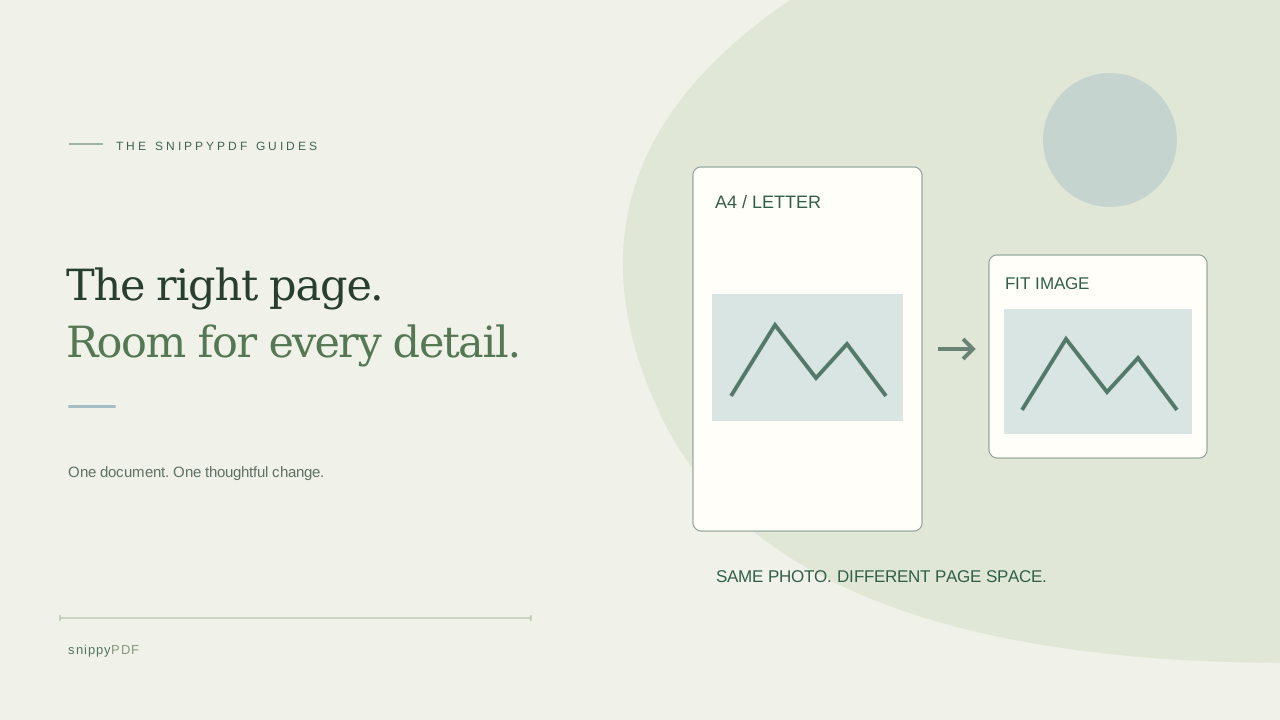
Keep photographed pages readable by choosing the right paper size, orientation and margins before downloading a PDF.
Start with the destination, not the camera dimensions
You have a portrait photo of a fictional class worksheet and a wide photo of its project sketch. The course asks for one PDF, but the photos have different proportions. Keep both originals, then check whether the recipient requires A4, US Letter or simply a readable digital document. A photo’s pixel count describes its image dimensions; it does not establish the intended printed paper size. A PDF page size describes the space in which that image is placed. Choose the requirement first instead of assuming that a PDF created from a phone photo will print at the same physical size as the paper you photographed.
Use A4 or Letter when the paper size matters
Open Images to PDF, add supported JPG, PNG or HEIC/HEIF still images, and inspect their orientation. In the page settings, choose A4 or Letter when the recipient or printer needs that paper format. The current tool fits each complete image inside the chosen page without cropping it, so a wide photo on a portrait page may have generous white space above and below. That is different from missing content. Do not stretch a worksheet merely to fill every edge: distorted letters and diagrams are harder to read. Check the smallest important label, not only the main heading, after fitting the image.
Use Fit image for image-shaped pages, with a printing check
Fit image makes PDF pages based on each image’s proportions rather than forcing every photo onto A4 or Letter. Different photos can therefore produce differently shaped pages in one PDF. This can be useful for a digital sketch portfolio when uniform paper size is not required. It does not recover the physical dimensions of the original paper, promise a particular print scale or add detail to a small photo. When white margins are enabled, the surrounding page also includes that margin. If you later print an image-shaped PDF on ordinary paper, the reader or printer may scale it again. Inspect print preview and any required scale before relying on measurements.
Distinguish rotating an image from changing page orientation
Use a photo’s rotation control when its words or sketch are sideways. Choose Portrait or Landscape in the page settings when you need a different shape for the selected standard paper size. These are separate decisions. In the current tool, standard page size and orientation settings apply across the assembled document; rotation controls apply to individual images. Fit image follows image proportions instead of the standard paper orientation setting. For the worksheet-and-sketch example, compare a common landscape layout with an image-shaped PDF and decide which keeps both pages readable. If a recipient demands different standard orientations page by page, prepare separate batches and review an appropriate assembly workflow rather than assuming the image tool offers that setting.
Use margins deliberately and check every edge
The White margin option adds space around the photo. With a standard paper size, enabling it reduces the area available to the image, which can make small text smaller. Disabling it does not guarantee edge-to-edge printing: the photo’s proportions can still leave white space, and a printer can have its own unprintable border. Check all four source edges, page numbers and any bottom notes before downloading. If the photograph itself includes a large table background, changing the PDF page size does not remove that background or straighten perspective. A better-framed source photo may help more than changing the page setting. Keep the original before making any crop elsewhere.
Check the saved PDF at the size it will be used
Download the PDF, reopen it in another reader and inspect both the full page and the smallest required detail. For the class example, confirm that the worksheet instructions and sketch labels remain readable, then check order and rotation. Use print preview when the recipient will print, and verify the page-size information where the reader provides it. Trial downloads have Powered by SnippyPDF at the top and bottom of every page; clean export requires a paid pass or authorized discount within its scope. Neither payment nor page-size selection guarantees recipient acceptance. Name the reviewed copy clearly and keep the source photos. A neatly fitted browser preview is not a substitute for checking the actual downloaded file.
See supported PDFs · Try the watermarked editor preview
More practical guides
- How to recognize English and Spanish text in the same document photo
- How to split selected PDF pages into separate files
- Turn a paper checklist photo into a PDF you can reuse
- How to rotate one page in a PDF and save the change
- How to insert a photo page into an existing PDF
- How to put front and back photos in one PDF
- How to extract nonconsecutive pages into one PDF
- Make document photos searchable in a PDF without rewriting the page
- Fix sideways document photos before making a PDF or running OCR
- Edit grouped text in a PDF online: a fictional DoorDash receipt example
- How to check numbers after turning a document photo into a PDF
- How to turn iPhone HEIC photos into a PDF without converting them first
- How to type on a blank line in a PDF without changing the sentence
- How to make a working copy of a scanned PDF without losing your original
- How to photograph a paper document for a readable PDF
- How to make a photo-heavy PDF smaller and check the result
- How to turn PDF pages into PNG images for a presentation
- How to add notes and highlights to a PDF
- How to check the edition of a USCIS PDF form
- How to turn phone photos into a PDF you can annotate
- How to correct words in a PDF made from a photo
- How to update a workplace checklist in a PDF
- How to keep PDF quotes and revisions organized
- How to correct a student project cover page in a PDF
- How to check names and accents when editing a PDF
- How to prepare a PDF before signing it
- How to edit existing PDF text without changing the surrounding sentence
- How to replace a PDF image without stretching it or covering nearby text
- Why PDF text will not edit: check the font, text layer and scan
- PDF editing preview versus clean export
- Why a detected PDF font may change when you edit the wording
- Before you send an edited PDF: a practical download-review checklist
- Saved draft or downloaded PDF? How to keep your edits and original
- How to assemble and check an organized PDF packet