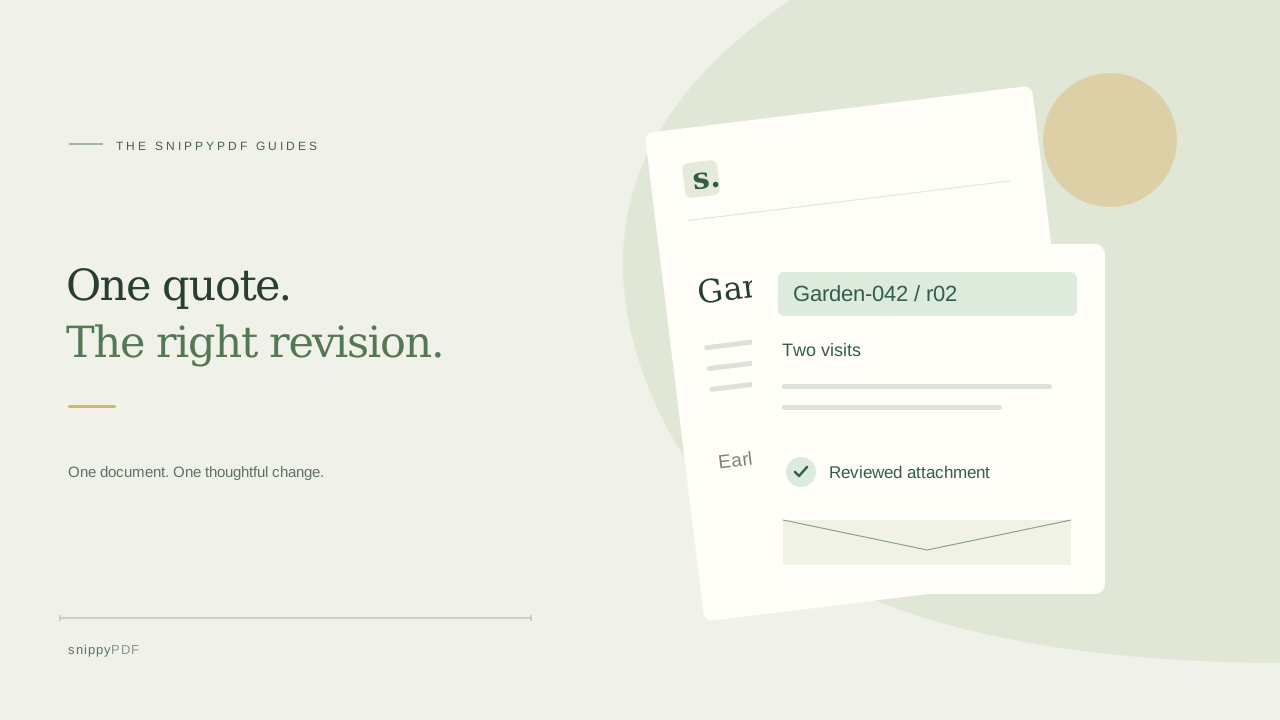
Name your quote revisions, match the PDF to the email summary, and check the exact attachment before sending a client an updated proposal.
Give each quote a short reference and revision
A client asks you to change a proposal after you have already emailed the PDF. Before editing, keep the sent copy and open a separate working copy. Give the proposal a stable reference, such as Garden-042, and each issued revision a clear number and date. A filename such as Garden-042-r02-2026-10-18.pdf is easier to distinguish from r01 than quote-final-final.pdf. Use the same reference and revision inside the PDF so a printed page can still be identified. Avoid putting private client details in filenames shared outside the intended conversation.
Write a short change list before editing
For a fictional garden-maintenance quote, the client changes one visit to two visits and removes window cleaning. List those changes before you touch the document. Check every place affected: the scope paragraph, schedule, quantity, any price summary and exclusions. Do not assume that changing one visible line updates a table, calculates a total or changes the same wording elsewhere. If you have the original spreadsheet, word-processing or design file, revise it there and export a fresh PDF; that is often the clearest way to keep related details consistent.
If you only have a PDF, check what can be changed
Work from a copy and test a small correction first. In SnippyPDF, choose Edit content, select the intended text and read the Content field before replacing it. A visible sentence may be split across several PDF objects, and a selection can include nearby words. Use Apply changes, then check the surrounding spacing. Longer wording does not automatically reflow the page. A scanned page may be an image rather than editable text; SnippyPDF has no OCR. If an accurate edit is not possible, request the source file or prepare a fresh proposal rather than covering old wording with a new text box.
Keep the email summary and attachment in agreement
Use a short email summary that identifies the quote reference, revision and what changed. For example: Garden-042, revision 02: two maintenance visits; window cleaning removed; see the attached revised scope and schedule. If you mention a price, confirm it against the actual attachment, including its currency, units and any separately stated items. Keep the detailed document readable on its own. Review the message and attachment together; renaming a file does not update the date or revision printed inside it.
Export a separate file and reopen it
A saved browser draft is a way to continue editing, not the client attachment. In the public SnippyPDF trial, choose Export PDF and Save watermarked PDF to download a separate file. The download includes Powered by SnippyPDF at the top and bottom of every page; public real payments remain disabled. Check that a watermarked copy is suitable for your recipient. Open the downloaded PDF in another reader and inspect the reference, revision, scope, dates, figures and every page. Check for clipped lines, missing characters and text that overlaps nearby content.
Attach the reviewed revision, then keep a simple sent record
In the email composer, remove an obsolete attachment if one is already present and select the exact file you just reviewed. Open the attachment preview when available and compare its reference and revision with your email summary. A previous file with a similar name can otherwise slip through. After sending, check the sent message for the intended attachment and keep that issued copy with its sent date. Keep older copies in a clearly labeled archive; if a client requests another change, start the next revision rather than silently replacing the file you already sent. This is a practical file-management habit, not a contract-approval or electronic-signature system.
See supported PDFs · Try the watermarked editor preview
More practical guides
- How to correct a student project cover page in a PDF
- How to check names and accents when editing a PDF
- How to prepare a PDF before signing it
- How to edit existing text in a PDF
- How to replace an image in a PDF
- Why your PDF text may not be editable
- PDF editing preview versus clean export
- Why a PDF font can be detected but not reused for every edit
- How to review PDF edits before you share the file
- How to save a PDF editing draft and keep the original