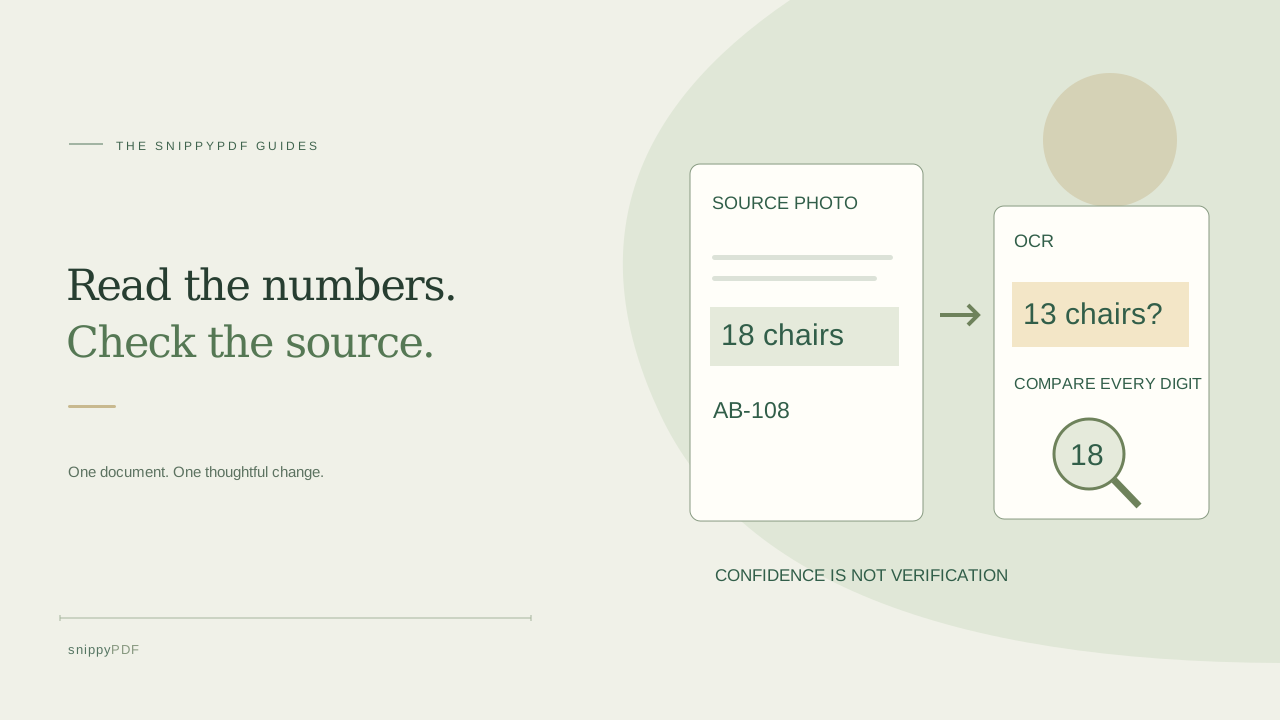
Compare recognized dates, quantities and reference numbers with the original photo before editing or sharing a PDF copy.
Keep a reference you can compare against
Suppose you photographed a fictional workshop booking sheet showing Room 12, 18 chairs and reference AB-108. You want a readable PDF for a colleague. Keep the original photo and make a separate working copy. Text recognition, or OCR, reads shapes in the image; it does not know which room was booked or whether a quantity makes sense. A plausible result can still be wrong. Set aside a short list of the fields that matter for this task: room, chair count, reference and date. Use a nonsensitive practice sheet before working with personal records. If you intend to change a source fact rather than fix recognition, confirm that change separately with the document owner.
Prepare the page before recognizing words
Open Images to PDF and choose a supported JPG, PNG or HEIC/HEIF still image. The tool prepares photos on your device. Check that the page is upright, in focus and free from glare across the numbers. A blurred digit cannot be made reliable by choosing a different PDF page size. If you still have the paper, a clearer photograph may be the quickest fix. Selected pages of a compatible scanned PDF can also use Import scan pages; that route rebuilds a copy and drops original text, links, annotations, layers and bookmarks. Keep the source file and do not use scan import merely to process a document whose original features you need to preserve.
Compare each important character, including punctuation
Choose Recognize text for the prepared image and compare the result with the photo. Check one field at a time instead of reading the recognized paragraph as ordinary prose. For the fictional reference AB-108, look closely at the letter B, the digit 1, the zero and the final 8. Check decimal marks, minus signs, slashes, leading zeros and units as carefully as the digits. A date such as 03/04/2026 is ambiguous without the source context; OCR cannot decide which date format the author intended. Do not silently change it to your preferred format. When a character is unreadable, obtain a clearer source or ask the owner rather than guessing from surrounding words.
Choose between a searchable copy and visible editable words
A searchable text layer and visible editable PDF text serve different purposes. The optional searchable layer helps a supporting reader search or copy recognized text, while the photographed page remains the visible content. Search results are not proof of accuracy: compare copied reference numbers with the photo too. Supported-word conversion can instead turn up to 300 high-confidence, font-supported words per image into visible PDF text for revision in the editor. Other words remain pixels. A confidence check is a technical filter, not a factual verification. Use visible replacement only on suitable flat, plain backgrounds and inspect the preview; it cannot reconstruct arbitrary paper texture or the details around a digit.
Correct recognition without inventing information
If the photo clearly says 18 chairs but recognition says 13, use the selected-word controls to supply the exact source wording and inspect the replacement before continuing. Check spacing and neighboring labels as well as the new digits. If the field is not safely supported, keep the photo unchanged or return to a clearer source rather than forcing a replacement. Open in editor when you need the supported editing flow, then review the chosen font and size before applying further changes. Do not change an issued receipt, official record or another person’s document to misrepresent its facts. Ordinary editing is not secure redaction, and a corrected visible word does not certify the document.
Verify the delivered file, not just the recognition panel
Download the PDF and reopen the actual file in another reader. Compare the important fields again with your original photo: Room 12, 18 chairs and AB-108 in this example. Check every page, orientation and any copied or searchable text you expect the recipient to use. Free trial downloads carry Powered by SnippyPDF at the top and bottom of each page; clean export requires an authorized discount or a paid pass within its scope. Confirm recipient requirements separately. Name the copy clearly, such as workshop-booking-reviewed.pdf, and keep the original beside it. Saving a browser draft, copying OCR text and downloading a PDF are different actions; none proves that a recipient received or accepted the document.
See supported PDFs · Try the watermarked editor preview
More practical guides
- How to recognize English and Spanish text in the same document photo
- How to split selected PDF pages into separate files
- Turn a paper checklist photo into a PDF you can reuse
- How to rotate one page in a PDF and save the change
- How to insert a photo page into an existing PDF
- How to put front and back photos in one PDF
- How to extract nonconsecutive pages into one PDF
- Make document photos searchable in a PDF without rewriting the page
- Fix sideways document photos before making a PDF or running OCR
- Edit grouped text in a PDF online: a fictional DoorDash receipt example
- A4, Letter or Fit image: which PDF page size should you choose for photos?
- How to turn iPhone HEIC photos into a PDF without converting them first
- How to type on a blank line in a PDF without changing the sentence
- How to make a working copy of a scanned PDF without losing your original
- How to photograph a paper document for a readable PDF
- How to make a photo-heavy PDF smaller and check the result
- How to turn PDF pages into PNG images for a presentation
- How to add notes and highlights to a PDF
- How to check the edition of a USCIS PDF form
- How to turn phone photos into a PDF you can annotate
- How to correct words in a PDF made from a photo
- How to update a workplace checklist in a PDF
- How to keep PDF quotes and revisions organized
- How to correct a student project cover page in a PDF
- How to check names and accents when editing a PDF
- How to prepare a PDF before signing it
- How to edit existing PDF text without changing the surrounding sentence
- How to replace a PDF image without stretching it or covering nearby text
- Why PDF text will not edit: check the font, text layer and scan
- PDF editing preview versus clean export
- Why a detected PDF font may change when you edit the wording
- Before you send an edited PDF: a practical download-review checklist
- Saved draft or downloaded PDF? How to keep your edits and original
- How to assemble and check an organized PDF packet