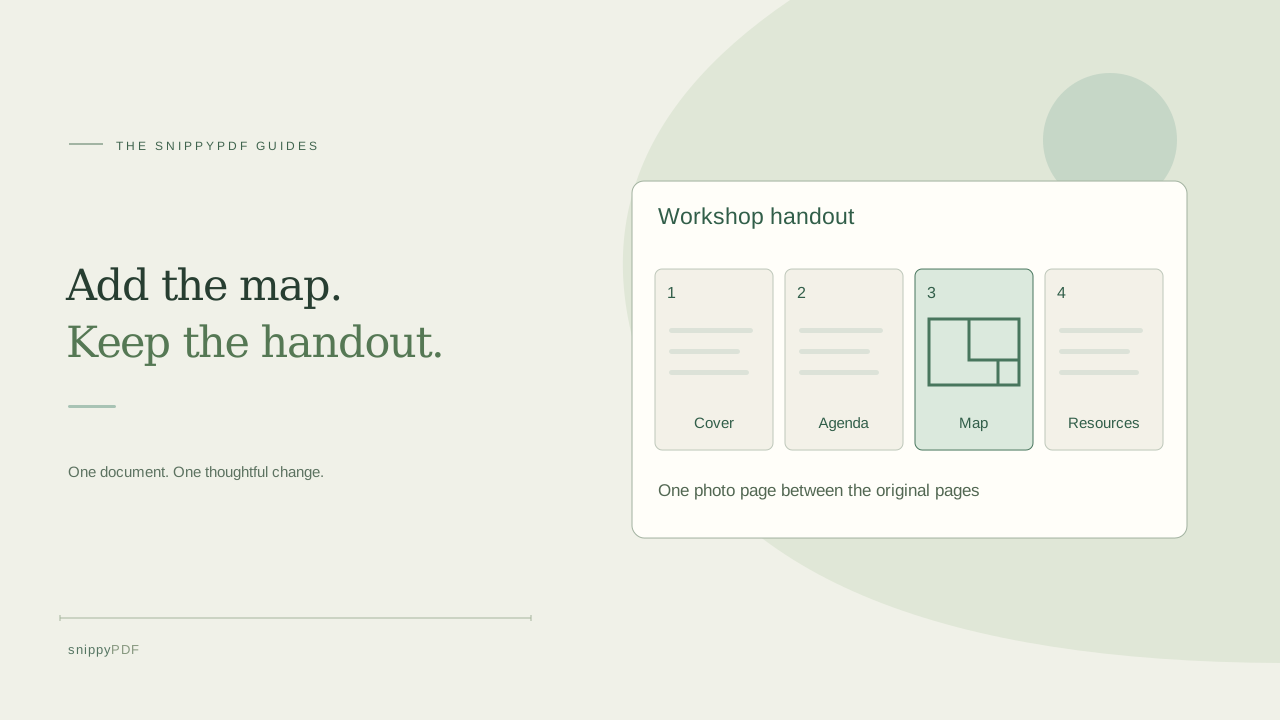
Turn one photo into a PDF page, insert it where it belongs, and verify the text on the original pages remains searchable.
Decide where the photo belongs
Suppose you have a three-page workshop handout with selectable text. You photographed the room map and want it after the agenda on page two. Save the handout and the photo separately. Plan the new order: cover, agenda, map, then resources. Adding a page makes the map easy to read at full size. If you only need a small image next to a paragraph, that calls for editing the page layout instead.
Convert just the photo
Open Images to PDF and select the map photo. Check the rotation and choose a page size that matches the handout if you plan to print them together. Leave OCR off when the map only needs to be read visually. Download the one-page PDF and open it to check that the labels and edges are readable. Keep the original handout out of this conversion. Turning its pages into images could remove their existing searchable text.
Add both PDFs and move the photo page
Open Organize PDF and add the handout, then the one-page PDF. Find the map at the end of the page list. Use Move up page until it follows the agenda. Confirm the order with the thumbnails and the source filenames. The organizer accepts compatible static PDFs up to 25 MB each, with up to 50 MB and 100 source pages in total. Use copies you can rebuild. Encrypted PDFs, digitally signed PDFs and interactive forms are unsupported.
Save the whole list and review the result
Choose Merge / save all pages and give the download a new name, such as workshop-handout-with-map.pdf. The trial adds a watermark to each page. If you need a clean result, use eligible paid or discount access and check both exports: a watermark already on the intermediate photo page can carry into the merged copy. Open the final PDF, count four pages and search for a distinctive phrase you could find in the original agenda. Confirm the search reaches the agenda and that the map is on page three. Check any important links or notes separately. A rebuilt PDF can lose document features such as bookmarks or accessibility tags.
See supported PDFs · Try the watermarked editor preview
More practical guides
- How to recognize English and Spanish text in the same document photo
- How to split selected PDF pages into separate files
- Turn a paper checklist photo into a PDF you can reuse
- How to rotate one page in a PDF and save the change
- How to put front and back photos in one PDF
- How to extract nonconsecutive pages into one PDF
- Make document photos searchable in a PDF without rewriting the page
- Fix sideways document photos before making a PDF or running OCR
- Edit grouped text in a PDF online: a fictional DoorDash receipt example
- A4, Letter or Fit image: which PDF page size should you choose for photos?
- How to check numbers after turning a document photo into a PDF
- How to turn iPhone HEIC photos into a PDF without converting them first
- How to type on a blank line in a PDF without changing the sentence
- How to make a working copy of a scanned PDF without losing your original
- How to photograph a paper document for a readable PDF
- How to make a photo-heavy PDF smaller and check the result
- How to turn PDF pages into PNG images for a presentation
- How to add notes and highlights to a PDF
- How to check the edition of a USCIS PDF form
- How to turn phone photos into a PDF you can annotate
- How to correct words in a PDF made from a photo
- How to update a workplace checklist in a PDF
- How to keep PDF quotes and revisions organized
- How to correct a student project cover page in a PDF
- How to check names and accents when editing a PDF
- How to prepare a PDF before signing it
- How to edit existing PDF text without changing the surrounding sentence
- How to replace a PDF image without stretching it or covering nearby text
- Why PDF text will not edit: check the font, text layer and scan
- PDF editing preview versus clean export
- Why a detected PDF font may change when you edit the wording
- Before you send an edited PDF: a practical download-review checklist
- Saved draft or downloaded PDF? How to keep your edits and original
- How to assemble and check an organized PDF packet