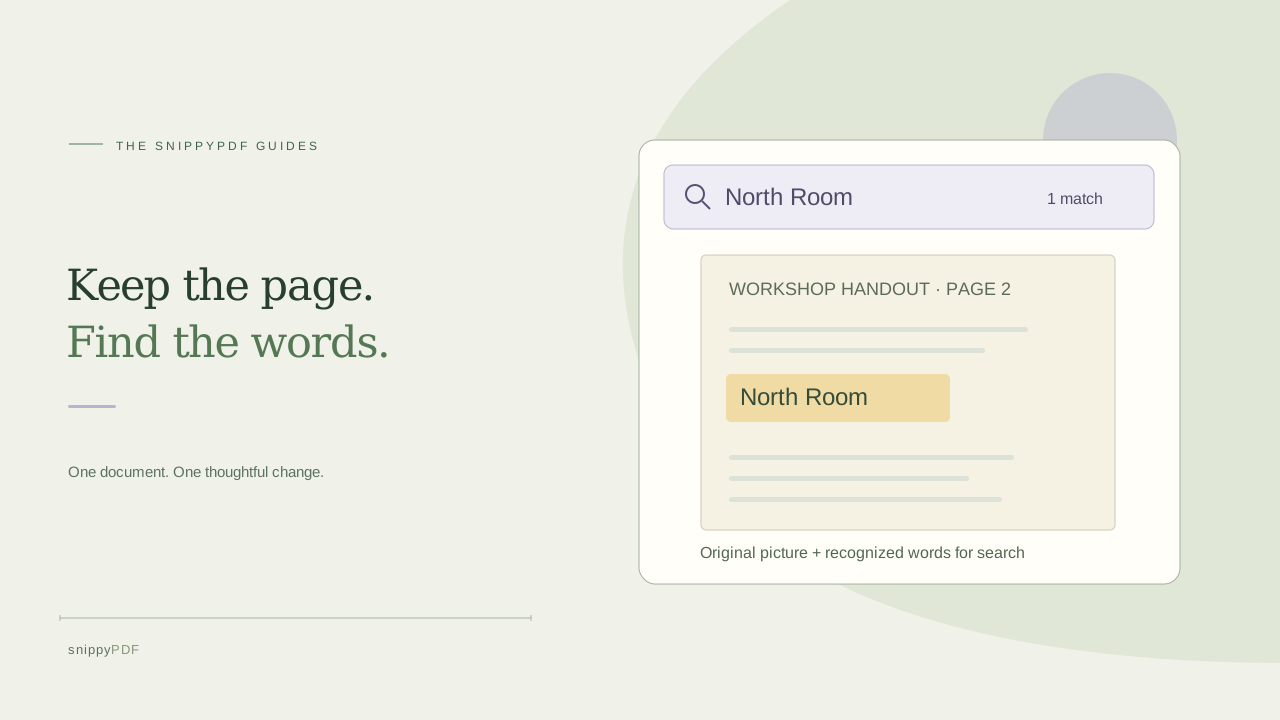
Add a searchable OCR layer to a photo PDF, find why the option may be disabled, and verify search and copied text in the actual download.
Decide what someone needs to find
Imagine you photographed three pages of a fictional workshop handout and want a colleague to find North Room without scrolling through every page. A normal photo PDF can look perfectly readable while containing only pictures of the letters. For this task, the goal is to keep those pictures as the visible pages and add recognized words that a PDF reader can search. If the reader only needs to look at or print the pages, an ordinary photo PDF may be enough. Keep the source photos so you can compare what the document actually says.
Recognize every image in the set
Open Images to PDF and add the supported document photos. Put them in order, correct sideways pages and replace blurry photos before recognition. Under Review the order, choose Recognize text beside each image, even if you only plan to search for a phrase on one page. The search-layer option applies to the downloaded set and becomes available once recognition has completed on every included image. If the checkbox is disabled, check whether one photo was added later, recognition was interrupted, or a page was rotated and its recognition result cleared. Finish the missing recognition before exporting.
Check the words before putting them into the file
Look at the recognized text for each page and compare a few important phrases with the source. In the fictional handout, a match for North Room should refer to the heading that actually says North Room, not a similar-looking line elsewhere. Include a short word or reference from each page in your check. Use Copy recognized text if you only need a snippet for notes. That button copies the OCR result; it does not add it to a PDF. If recognition repeatedly misses important wording, use a clearer photo or tell the reader which pages to inspect visually.
Choose the search layer and download the PDF
Select Add recognized words as a searchable PDF layer, then use Download PDF. Give this copy a distinct name, such as workshop-handout-searchable.pdf. For a search-only copy, leave the photo-word conversion and replacement options unused. The page pictures remain visible, and recognition adds approximate text for finding or copying words. Open in editor is a separate action and does not apply this download checkbox. Free trial downloads include a watermark above and below each page; watermark-free exports require an eligible paid pass or discount.
Test the exported file with three small checks
Open the saved PDF in a reader with document search. First, search for a distinctive phrase you can see on the first page. Next, search for a different phrase from a later page to check that the layer covers more than the cover. Finally, copy a short passage into a plain-text note and compare it with the picture. A result can be found but still copy with incorrect spacing, accents or numbers. If a phrase fails, try one distinctive word and inspect the image; a missing match is not proof that the words are absent. Share the tested download, rather than assuming the preview is the attachment.
Use visible text conversion only when you need an edit
A search hit does not make the visible letters editable. If you need to revise a supported printed label in your own document, the separate reviewed photo-word conversion can make up to 300 high-confidence, font-supported words per image into visible PDF text on suitable flat, plain backgrounds. Other words remain pixels unless represented by a separate searchable layer. Choose search-only when the printed appearance should stay as it is. Searchable text can expose words to copying even though the added layer is not visibly printed; do not treat a search layer, cropping or covering part of a page as secure redaction.
See supported PDFs · Try the watermarked editor preview
More practical guides
- How to recognize English and Spanish text in the same document photo
- How to split selected PDF pages into separate files
- Turn a paper checklist photo into a PDF you can reuse
- How to rotate one page in a PDF and save the change
- How to insert a photo page into an existing PDF
- How to put front and back photos in one PDF
- How to extract nonconsecutive pages into one PDF
- Fix sideways document photos before making a PDF or running OCR
- Edit grouped text in a PDF online: a fictional DoorDash receipt example
- A4, Letter or Fit image: which PDF page size should you choose for photos?
- How to check numbers after turning a document photo into a PDF
- How to turn iPhone HEIC photos into a PDF without converting them first
- How to type on a blank line in a PDF without changing the sentence
- How to make a working copy of a scanned PDF without losing your original
- How to photograph a paper document for a readable PDF
- How to make a photo-heavy PDF smaller and check the result
- How to turn PDF pages into PNG images for a presentation
- How to add notes and highlights to a PDF
- How to check the edition of a USCIS PDF form
- How to turn phone photos into a PDF you can annotate
- How to correct words in a PDF made from a photo
- How to update a workplace checklist in a PDF
- How to keep PDF quotes and revisions organized
- How to correct a student project cover page in a PDF
- How to check names and accents when editing a PDF
- How to prepare a PDF before signing it
- How to edit existing PDF text without changing the surrounding sentence
- How to replace a PDF image without stretching it or covering nearby text
- Why PDF text will not edit: check the font, text layer and scan
- PDF editing preview versus clean export
- Why a detected PDF font may change when you edit the wording
- Before you send an edited PDF: a practical download-review checklist
- Saved draft or downloaded PDF? How to keep your edits and original
- How to assemble and check an organized PDF packet