Mark a passage, add clear review comments, and check the downloaded PDF while keeping the document’s original text intact.
Decide whether you are reviewing or revising
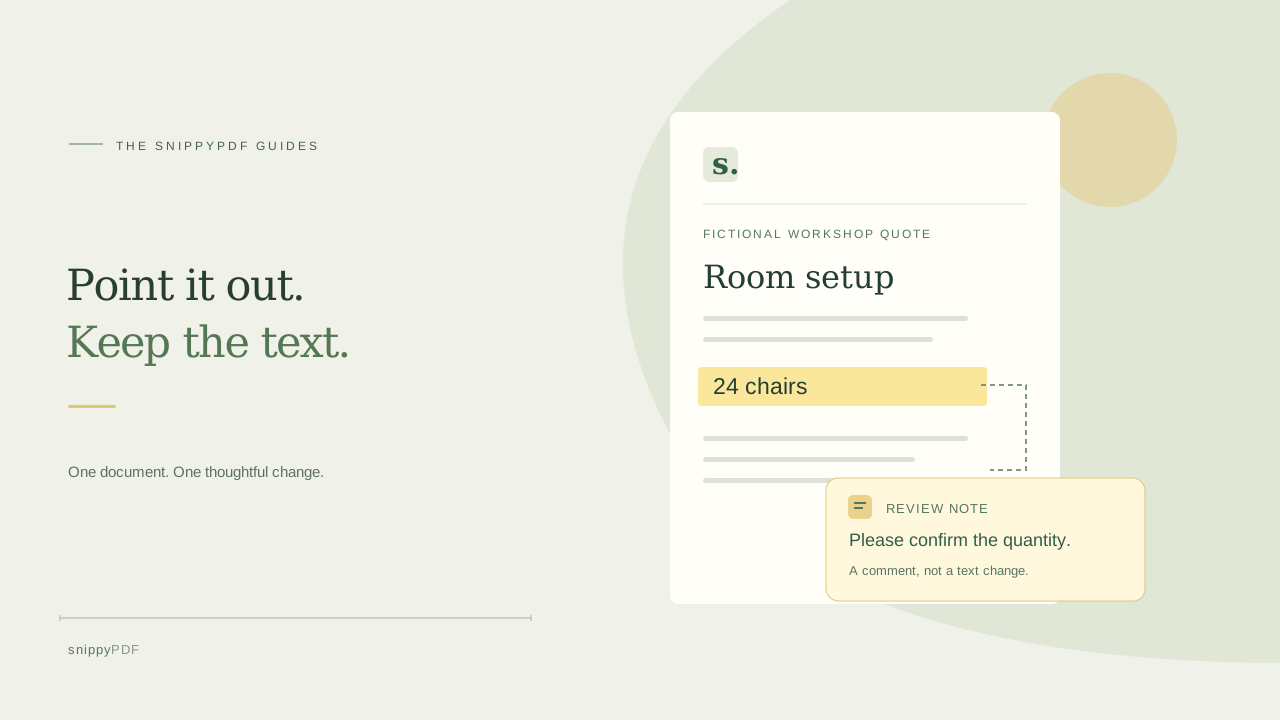
Suppose a class project team or a freelance client sends you a draft workshop quote. You want to ask whether the room needs 24 chairs, not change the quoted quantity yourself. A highlight draws attention to a region; a note records your question. Neither changes the original words or confirms that a quote, agreement or application has been approved. If you are responsible for correcting the document itself, make that separate revision in its source file or a supported PDF editor after the feedback is resolved.
Keep the source and choose a supported copy
Save the original in a folder you control, then work with a nonsensitive copy such as workshop-quote-review.pdf. Open SnippyPDF’s Review PDF tool and choose your file. The current tool accepts supported PDFs up to 25 MB and 100 pages. Encrypted files, digitally signed files, interactive forms and active actions are refused. Do not remove a signature or security restriction just to force a file through; request an appropriate review copy from its owner. The PDF is processed on your device, rather than uploaded to a document-processing service.
Choose the page and mark the exact region
In Notes and highlighting, choose the page number. Drag a rectangle across the line you want the reviewer to examine. You can also enter Left, Top, Width and Height percentages to position the rectangle without dragging. A small region is usually clearer than a highlight covering half a page. This tool marks a rectangle, rather than automatically selecting words or following a paragraph across lines. Check that the region belongs to the correct page, especially when the document contains landscape or rotated pages.
Write a comment that someone can act on
Enter a short question in Note, then choose Add highlight to associate it with the marked region, or Add note to place a separate comment icon. For the fictional quote, ‘Please confirm 24 chairs against the approved workshop brief’ is more useful than ‘Wrong.’ Include the relevant label and requested check, while avoiding unnecessary private details. Notes support up to 2,000 characters. The new marks appear in the review list with their page numbers; use Remove for an accidental new mark before exporting.
Review the downloaded PDF in another reader
Choose Download reviewed PDF to save a new copy with standard PDF notes and highlight annotations. The free download carries SnippyPDF watermarks; clean export requires authorized access, and sign in under Export PDF to buy a pass. Reopen the actual download in another PDF reader, inspect the highlighted region, and open the comment or annotations panel to check the note. Some readers present comment icons and popups differently. Check page count, orientation, existing text and any earlier annotations as well as your new feedback; the browser preview alone is not the delivered file.
Keep comments in PDF form when the next person needs them
Sending the reviewed PDF keeps the annotation contents available to a supporting reader. A screenshot or PNG page is a flat picture of the rendered page and does not retain an interactive PDF comment or popup. If you also export PNG pages for a class slide or a quick visual reference, explain that distinction and keep the PDF as the review record. Highlights are not secure redaction: they do not remove underlying words or hide information from someone who can inspect the document.
Hand off a clear version and resolve the feedback
Use a filename such as workshop-quote-review-r01.pdf and tell the recipient which pages need a response. Keep it beside the unchanged original, rather than overwriting the source or calling an unapproved review ‘final.’ SnippyPDF does not synchronize a live conversation between reviewers. After the document owner resolves the questions, compare the revised copy with the comments and check the new download again. Students, freelancers and small teams can use the same routine: identify the passage, ask a specific question, verify the exported notes, and keep a clear version trail.
See supported PDFs · Try the watermarked editor preview
More practical guides
- How to recognize English and Spanish text in the same document photo
- How to split selected PDF pages into separate files
- Turn a paper checklist photo into a PDF you can reuse
- How to rotate one page in a PDF and save the change
- How to insert a photo page into an existing PDF
- How to put front and back photos in one PDF
- How to extract nonconsecutive pages into one PDF
- Make document photos searchable in a PDF without rewriting the page
- Fix sideways document photos before making a PDF or running OCR
- Edit grouped text in a PDF online: a fictional DoorDash receipt example
- A4, Letter or Fit image: which PDF page size should you choose for photos?
- How to check numbers after turning a document photo into a PDF
- How to turn iPhone HEIC photos into a PDF without converting them first
- How to type on a blank line in a PDF without changing the sentence
- How to make a working copy of a scanned PDF without losing your original
- How to photograph a paper document for a readable PDF
- How to make a photo-heavy PDF smaller and check the result
- How to turn PDF pages into PNG images for a presentation
- How to check the edition of a USCIS PDF form
- How to turn phone photos into a PDF you can annotate
- How to correct words in a PDF made from a photo
- How to update a workplace checklist in a PDF
- How to keep PDF quotes and revisions organized
- How to correct a student project cover page in a PDF
- How to check names and accents when editing a PDF
- How to prepare a PDF before signing it
- How to edit existing PDF text without changing the surrounding sentence
- How to replace a PDF image without stretching it or covering nearby text
- Why PDF text will not edit: check the font, text layer and scan
- PDF editing preview versus clean export
- Why a detected PDF font may change when you edit the wording
- Before you send an edited PDF: a practical download-review checklist
- Saved draft or downloaded PDF? How to keep your edits and original
- How to assemble and check an organized PDF packet