Check a photographed bilingual handout, compare the English and Spanish OCR results, and verify the text before copying or editing it.
Find a short phrase in each language
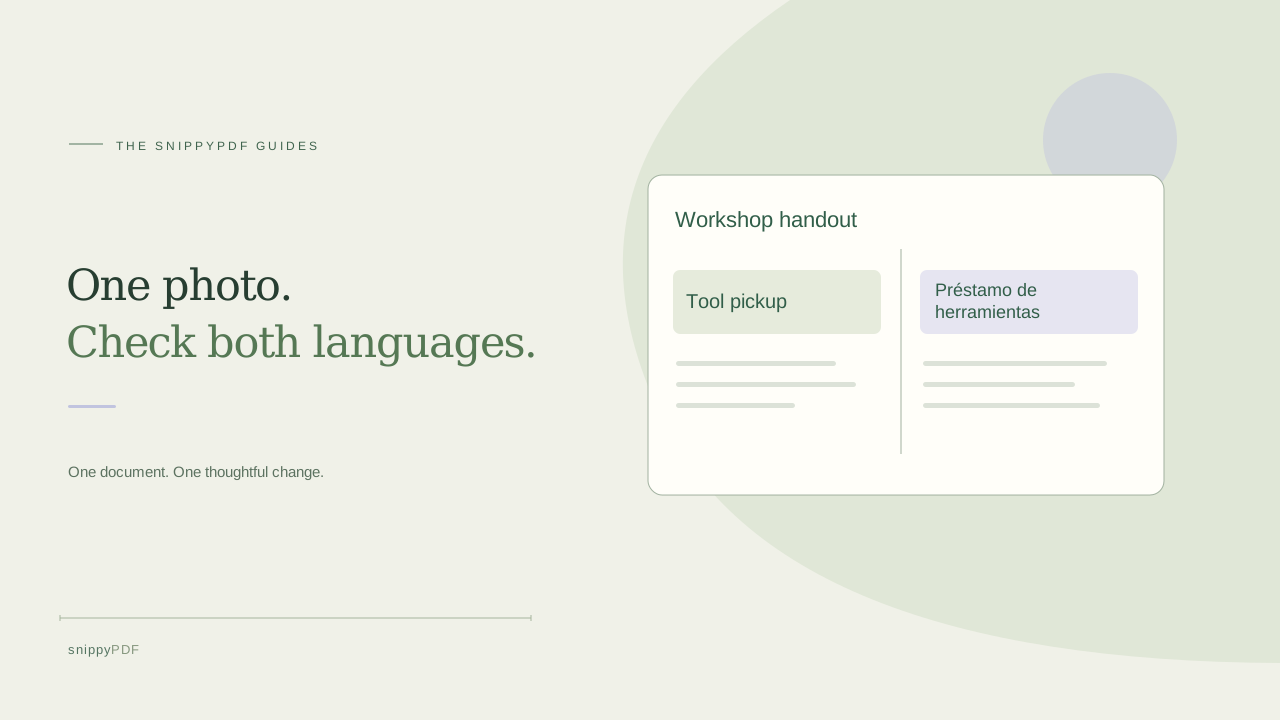
Imagine your neighborhood workshop has a printed handout with two headings: Tool pickup and Préstamo de herramientas. You want to copy a line from each section into an email. Keep the photo open as a reference. If the headings are clearer than the body text, choose a short sentence from the body of each section as a second check.
Run recognition on the whole photo
Open Images to PDF and add the photo. Use Recognize text beside its thumbnail. The tool checks for English and Spanish text in both interface languages. It reads words from the photo. If you need a translation, keep that as a separate step. For a page with glare or text near a fold, try a new photo in even light and recognize it again.
Compare the copied words with both sections
Use Copy recognized text and paste the result into a plain-text note. On a handout with side-by-side columns, check that each sentence stays with the right heading. A missed accent, such as prestamo in place of préstamo, is easy to fix in the note. If the two columns appear in the wrong order, copy only the checked lines into your email in the intended sequence.
Check what you need in the PDF
If you want to edit supported words later, use Make recognized words editable in the PDF and compare the visible preview with the photo. On flat, plain paper the feature converts up to 300 high-confidence words per photo that the PDF font supports. Other words stay in the image. The optional searchable layer serves a different task. After downloading, reopen the PDF and test a word from each section using the function you needed. Free trial downloads include a watermark.
See supported PDFs · Try the watermarked editor preview
More practical guides
- How to split selected PDF pages into separate files
- Turn a paper checklist photo into a PDF you can reuse
- How to rotate one page in a PDF and save the change
- How to insert a photo page into an existing PDF
- How to put front and back photos in one PDF
- How to extract nonconsecutive pages into one PDF
- Make document photos searchable in a PDF without rewriting the page
- Fix sideways document photos before making a PDF or running OCR
- Edit grouped text in a PDF online: a fictional DoorDash receipt example
- A4, Letter or Fit image: which PDF page size should you choose for photos?
- How to check numbers after turning a document photo into a PDF
- How to turn iPhone HEIC photos into a PDF without converting them first
- How to type on a blank line in a PDF without changing the sentence
- How to make a working copy of a scanned PDF without losing your original
- How to photograph a paper document for a readable PDF
- How to make a photo-heavy PDF smaller and check the result
- How to turn PDF pages into PNG images for a presentation
- How to add notes and highlights to a PDF
- How to check the edition of a USCIS PDF form
- How to turn phone photos into a PDF you can annotate
- How to correct words in a PDF made from a photo
- How to update a workplace checklist in a PDF
- How to keep PDF quotes and revisions organized
- How to correct a student project cover page in a PDF
- How to check names and accents when editing a PDF
- How to prepare a PDF before signing it
- How to edit existing PDF text without changing the surrounding sentence
- How to replace a PDF image without stretching it or covering nearby text
- Why PDF text will not edit: check the font, text layer and scan
- PDF editing preview versus clean export
- Why a detected PDF font may change when you edit the wording
- Before you send an edited PDF: a practical download-review checklist
- Saved draft or downloaded PDF? How to keep your edits and original
- How to assemble and check an organized PDF packet