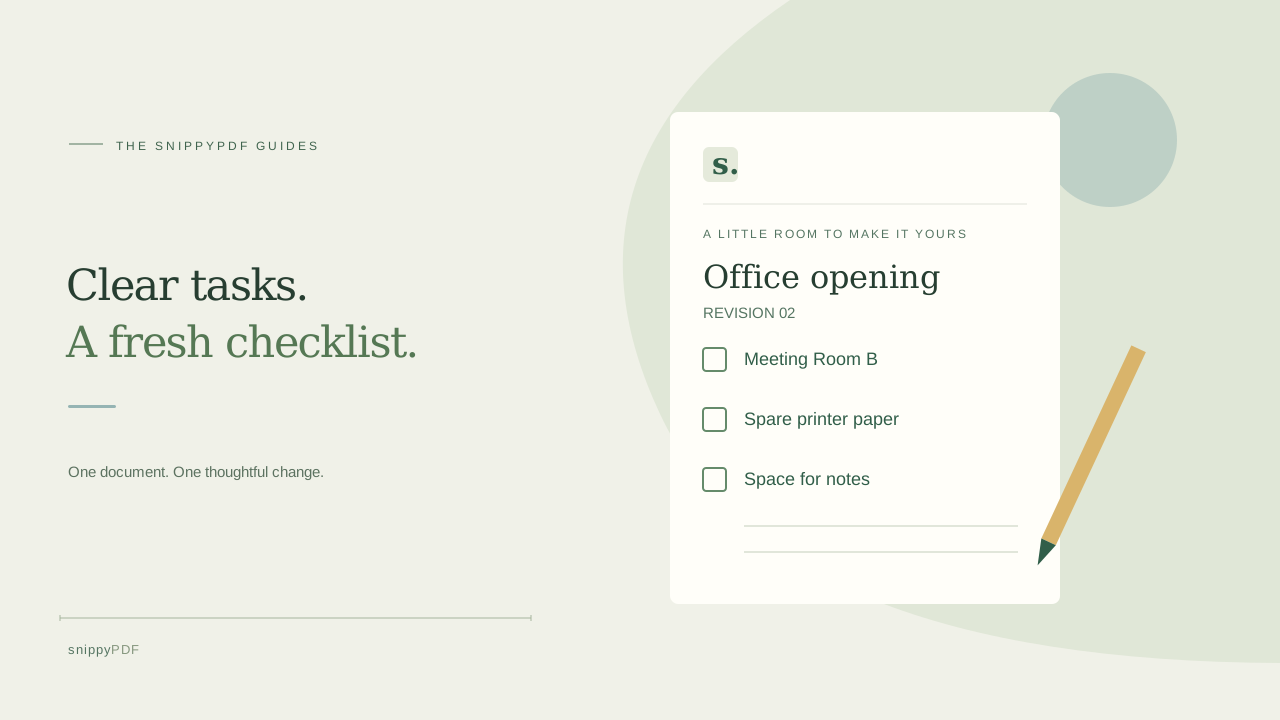
Revise a reusable PDF checklist, keep empty checkboxes and instructions clear, and inspect a fresh downloaded copy before sharing it with your team.
Start from a blank master, not a completed record
Use a fictional office-opening checklist as an example: the team changes its meeting-room name and adds a check for spare printer paper. Keep an untouched master and make a separate revision. Do not edit a completed checklist to make it look as though a task was performed or approved. If the checklist concerns safety, regulated work or a required company procedure, ask the person responsible for the procedure to approve the wording; changing a PDF does not establish compliance or replace that review.
List exactly which instructions are changing
Write a short change list: replace Room A with Meeting Room B, add Check spare printer paper, and update the revision label. Look for repeated room names, old dates, a second page or a footer that also needs attention. Keep each instruction focused on one observable task. Preserve the meaning of existing instructions unless you are authorized to change them. If you have the original Word, spreadsheet or design file, edit that source and export a new PDF; it is often easier to add rows and keep spacing consistent there.
Test a small text edit before revising the whole page
If only the PDF is available, open your working copy in SnippyPDF and choose Edit content. Select the room name and inspect the Content field before changing it. A visible line may be divided into separate text objects, and a selection can include neighboring words. Apply only the intended correction and inspect it at a readable zoom. Longer text does not automatically reflow the page. A scanned checklist can contain an image instead of editable words; SnippyPDF has no OCR. Return to the source or request an editable master if the result cannot be made accurate.
Leave enough room for checkboxes and handwritten notes
Do not assume that a printed square is an interactive PDF form field. Keep blank boxes visible and leave enough room for whoever will mark them. If a short instruction is missing and there is genuinely unused space, Text in an area can add a text object; the editor controls are in English. Check its font, size and position against the surrounding instructions. Adding a row that pushes later items down is better done in the source file. Do not cover an old instruction with a white shape or new wording and treat the old information as securely removed.
Give the new master a clear revision label
Use a label such as Office opening checklist, revision 02, and a distinct filename such as office-opening-checklist-r02.pdf. Include an effective date only when your team has actually agreed on it. Compare the revised master with your change list: room names, item order, blank boxes, note areas and all pages. Keep the previous master in an archive so it can be distinguished from the current copy. This is file organization; SnippyPDF does not route the checklist for managerial approval or prove that a task was completed.
Inspect the downloaded file before distributing it
A saved browser draft is not the PDF your team will receive. Choose Export PDF and use the available download option. The public trial includes Powered by SnippyPDF at the top and bottom of every page; public real payments remain disabled. Check whether that trial copy is suitable for your workplace. Open the actual download in a separate PDF reader, inspect every page, and review print preview if the checklist will be used on paper. Verify that the revision label, first and last instructions, checkbox edges and writing space remain readable. Share the checked file through your team’s normal document channel and identify which revision it replaces.
See supported PDFs · Try the watermarked editor preview
More practical guides
- How to keep PDF quotes and revisions organized
- How to correct a student project cover page in a PDF
- How to check names and accents when editing a PDF
- How to prepare a PDF before signing it
- How to edit existing text in a PDF
- How to replace an image in a PDF
- Why your PDF text may not be editable
- PDF editing preview versus clean export
- Why a PDF font can be detected but not reused for every edit
- How to review PDF edits before you share the file
- How to save a PDF editing draft and keep the original