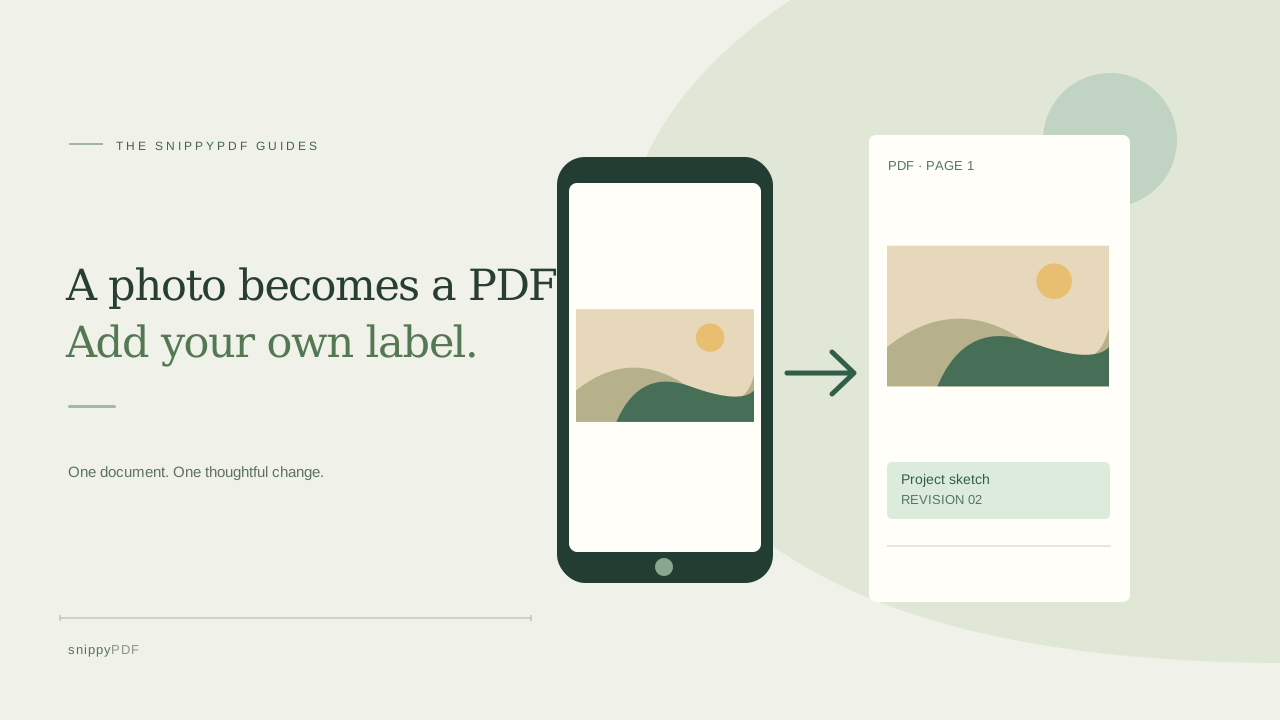
Put JPG or PNG photos in order, convert them to a PDF, add a separate label in the editor, and check the downloaded pages before sharing.
Check what the recipient actually needs
Suppose you photographed three pages of a fictional class project or a sketch for a client. Before converting them, check whether the recipient wants a PDF, individual image files, a particular page order, or a file without a watermark. Keep the original photos. A PDF groups the pictures into pages; it does not make words photographed on paper into editable text. Avoid using sensitive documents as a test sample.
Make each photo readable before uploading
Photograph each page in even light, hold the camera straight, and include all four edges. Zoom into the saved photo to check small writing, faint pencil marks and clipped corners. SnippyPDF fits the complete picture onto a PDF page; it does not straighten a skewed document, crop away a desk, or improve a blurry image. If the photo is hard to read, retake it. Export a JPG or PNG first if your phone saved HEIC, which this converter does not accept.
Set the page order and size
Open Images to PDF and add your JPG or PNG files. The tool accepts up to 20 images, subject to file-size and pixel limits shown on the page. Move a page up or down, rotate a sideways photo and remove an accidental duplicate. Choose A4 or Letter for a consistent paper size, or the proportional image-size option; choose portrait or landscape and an optional margin. The picture is fitted without cropping. Preview each thumbnail and order before creating the PDF. The conversion runs in your browser.
Add a separate note in the PDF editor
Choose Open in editor after arranging the photos. The generated PDF opens directly in SnippyPDF's editor in this browser, where you can add a separate text label in a clear area or place a signature image when appropriate. For example, add Project sketch, revision 02 beside the picture, then inspect its position. The editor controls are currently in English. Words already inside the photographed image stay pixels: selecting that image will not let you rewrite those words, and SnippyPDF has no OCR. Correct the source or retake the photo if its text is wrong.
Download the version you intend to use
The free download includes a visible SnippyPDF watermark on every PDF page. A clean export requires existing authorized access; public checkout is not available yet. Opening the converted file in the editor does not remove the watermark rule. If an instructor, client or other recipient needs an unmarked file, confirm that you have an accepted export method before relying on the free copy. A local browser draft is for continuing work, not a PDF attachment.
Reopen and inspect the actual download
Open the downloaded PDF in a separate reader. Check the first and last photos, page count, order, orientation, full edges, legibility, any added label and the watermark. If it will be printed, inspect print preview too. Give the reviewed file a distinct name such as project-sketch-r02.pdf and keep the original photos separately. Sending, uploading or printing the file is a separate action; a completed download alone does not show that the recipient received it.
See supported PDFs · Try the watermarked editor preview
More practical guides
- How to check the edition of a USCIS PDF form
- How to update a workplace checklist in a PDF
- How to keep PDF quotes and revisions organized
- How to correct a student project cover page in a PDF
- How to check names and accents when editing a PDF
- How to prepare a PDF before signing it
- How to edit existing text in a PDF
- How to replace an image in a PDF
- Why your PDF text may not be editable
- PDF editing preview versus clean export
- Why a PDF font can be detected but not reused for every edit
- How to review PDF edits before you share the file
- How to save a PDF editing draft and keep the original