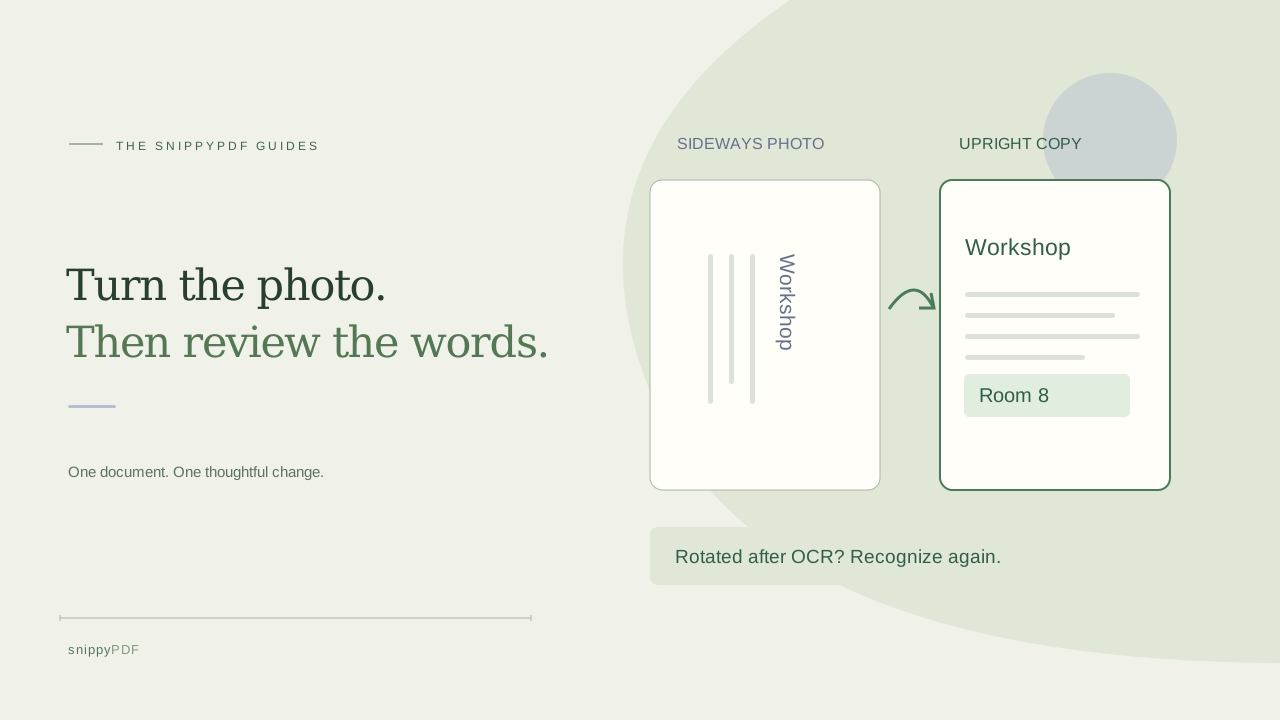
Rotate each document photo, rerun recognition after a rotation and check the downloaded PDF without confusing page orientation with image direction.
Find which page is sideways
Suppose you photographed a fictional two-page workshop handout. The cover is upright, but the second photo puts the words on their side. Keep the original photos and identify the intended top edge of each sheet. Turning your phone may make a preview easier to read without changing the file itself. A landscape photograph can also contain upright words, so width alone does not tell you whether rotation is needed. Use a heading and the reading direction of a full sentence to decide. Check every page separately instead of rotating the whole set because one thumbnail looks wrong.
Open the photo workflow and inspect the thumbnails
In Images to PDF, choose supported JPG, PNG or HEIC/HEIF still photos. The editor’s Open PDF button is for an existing PDF, rather than a camera image. Let the photos finish loading, then find the affected image under Review the order. Use its filename and thumbnail to distinguish it from the other page; camera filenames are not reliable page numbers. Move up and Move down change the sequence, not the direction of the words. If the original is blurred, cropped or obscured by glare, rotating it will not restore missing detail: take a clearer photo before continuing.
Rotate the individual photo before recognizing text
Use Rotate beside the affected image until its heading reads normally. Each activation turns that image by a quarter turn; inspect the result before pressing again. The adjustment applies to the working copy in the tool, not the original photo in your library. For the workshop example, leave the upright cover alone and rotate only page two. A rotation cannot flatten a folded sheet or correct perspective from a sharply angled camera. If the page still looks skewed after its words face the right way, prepare a better source photo rather than expecting rotation to straighten every line.
If you rotated after OCR, recognize and review again
The current tool clears that image’s recognized text when you rotate it. This prevents old word positions from being reused against the newly oriented picture. Choose Recognize text again for the rotated image and compare the new result with the source. Do not assume previous word replacements or a previously reviewed OCR result survived: reopen Review photo words and check the intended wording. Recognition is optional if you only need readable page images. On suitable flat, plain-background photos, up to 300 high-confidence, font-supported words per image can become editable PDF text; other words remain pixels. Names, accents and numbers still need human comparison.
Choose the PDF page shape after the words face correctly
Image rotation and PDF page orientation solve different problems. Rotating the photo turns its contents; choosing portrait or landscape paper changes the surrounding page shape. An upright wide diagram may belong on landscape paper without any photo rotation. Check page size, margins and the preview after setting the image direction. The tool fits one image per page without cropping; large unused margins can make small print harder to read. Keep every relevant edge visible. Do not use page orientation as a substitute for correcting sideways words, and do not mistake a clipped thumbnail for proof that the downloaded PDF is cropped.
Download a copy and verify its direction outside the tool
Export a separately named file such as workshop-handout-upright.pdf and reopen that actual download in another PDF reader. Read a heading and a sentence on each page, confirm the sequence and zoom in on the smallest necessary text. If you used OCR, check search or selection in the exported file as well as its visible appearance; a correct-looking photo does not prove recognition is accurate. Trial downloads are free and watermarked at the top and bottom of each page. Clean export requires a valid paid pass or discount access within its scope. Keep the original photos until the recipient has the intended copy. Orientation, OCR and editing do not establish authenticity or guarantee that a receiving organization accepts a document.
See supported PDFs · Try the watermarked editor preview
More practical guides
- How to recognize English and Spanish text in the same document photo
- How to split selected PDF pages into separate files
- Turn a paper checklist photo into a PDF you can reuse
- How to rotate one page in a PDF and save the change
- How to insert a photo page into an existing PDF
- How to put front and back photos in one PDF
- How to extract nonconsecutive pages into one PDF
- Make document photos searchable in a PDF without rewriting the page
- Edit grouped text in a PDF online: a fictional DoorDash receipt example
- A4, Letter or Fit image: which PDF page size should you choose for photos?
- How to check numbers after turning a document photo into a PDF
- How to turn iPhone HEIC photos into a PDF without converting them first
- How to type on a blank line in a PDF without changing the sentence
- How to make a working copy of a scanned PDF without losing your original
- How to photograph a paper document for a readable PDF
- How to make a photo-heavy PDF smaller and check the result
- How to turn PDF pages into PNG images for a presentation
- How to add notes and highlights to a PDF
- How to check the edition of a USCIS PDF form
- How to turn phone photos into a PDF you can annotate
- How to correct words in a PDF made from a photo
- How to update a workplace checklist in a PDF
- How to keep PDF quotes and revisions organized
- How to correct a student project cover page in a PDF
- How to check names and accents when editing a PDF
- How to prepare a PDF before signing it
- How to edit existing PDF text without changing the surrounding sentence
- How to replace a PDF image without stretching it or covering nearby text
- Why PDF text will not edit: check the font, text layer and scan
- PDF editing preview versus clean export
- Why a detected PDF font may change when you edit the wording
- Before you send an edited PDF: a practical download-review checklist
- Saved draft or downloaded PDF? How to keep your edits and original
- How to assemble and check an organized PDF packet