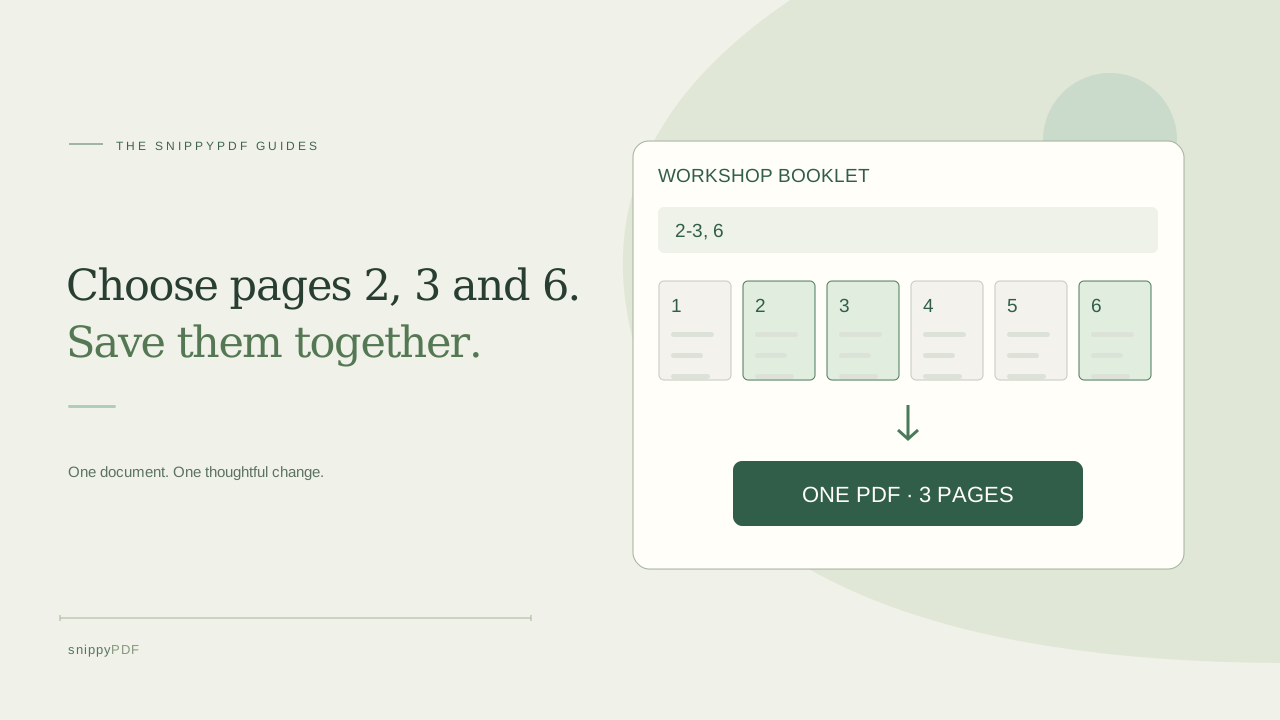
Select a range and a separate page, check how the organizer numbers them, and download the selection as one PDF.
List the pages you need
Suppose a colleague asks for the agenda on pages 2 and 3 and the room plan on page 6 of a fictional workshop booklet. Open the source and note both the printed labels and the positions shown by the PDF reader. A cover can make the printed page 1 the second page of the file. Use the thumbnails and headings to identify the three sheets before starting. Keep the source in its original folder so you can check the excerpt against it later.
Open a compatible copy in Organize PDF
Add the booklet in SnippyPDF’s Organize PDF tool. The organizer processes compatible files in your browser and creates a separate copy. For one source PDF, the input limit is 25 MiB, subject to the tool’s 100-source-page limit. Encrypted or digitally signed PDFs and interactive forms are unsupported. Rebuilding a selection can drop features such as bookmarks, annotations or links. If the recipient needs those features or the original signed document, confirm what they need before making an excerpt.
Apply the range and check the selected thumbnails
In Page range, enter 2-3, 6 and choose Apply selection. The numbers refer to positions in the organizer’s current page list. If you moved or removed pages, use the new positions shown beside the thumbnails. Applying a range replaces the previous selection, so enter all the pages you want in the same field. Check that the selected count is three and that the thumbnails show both agenda pages and the room plan. This is especially useful when two pages have similar headings.
Arrange the result before exporting
The selected pages keep their order from the organizer’s list. Typing 6, 2-3 selects the same pages and does not put the room plan first. To make the plan the first page of the excerpt, move it up in the list and check the selection again. If you reapply the range after moving pages, use their new positions. Check the direction of any landscape sheet before export. You can leave the unselected pages in the list because the extraction uses the selection.
Choose a single PDF or a ZIP of individual pages
Use Extract selected to get one PDF containing the three selected pages. Split selected creates a ZIP with one PDF per selected page, which is useful when each page must be sent separately. Merge / save all pages includes the entire current list. For this example, choose extraction and rename the saved copy to workshop-agenda-and-plan.pdf. The free option adds a watermark to each page. For a clean copy, use the corresponding export option with an eligible paid pass or discount.
Open the download and check what it contains
Open the new PDF from Downloads and confirm the page count, order and visible content. The excerpt should contain the two agenda pages and the plan. Its reader positions will now be 1 through 3, even if the printed labels still say 2, 3 and 6. Check that any information on the selected pages can be shared with the intended recipient. Extracting pages leaves the content on the included pages intact for viewing and does not redact sensitive details on those pages. Keep the full booklet for reference and attach the checked excerpt.
See supported PDFs · Try the watermarked editor preview
More practical guides
- How to recognize English and Spanish text in the same document photo
- How to split selected PDF pages into separate files
- Turn a paper checklist photo into a PDF you can reuse
- How to rotate one page in a PDF and save the change
- How to insert a photo page into an existing PDF
- How to put front and back photos in one PDF
- Make document photos searchable in a PDF without rewriting the page
- Fix sideways document photos before making a PDF or running OCR
- Edit grouped text in a PDF online: a fictional DoorDash receipt example
- A4, Letter or Fit image: which PDF page size should you choose for photos?
- How to check numbers after turning a document photo into a PDF
- How to turn iPhone HEIC photos into a PDF without converting them first
- How to type on a blank line in a PDF without changing the sentence
- How to make a working copy of a scanned PDF without losing your original
- How to photograph a paper document for a readable PDF
- How to make a photo-heavy PDF smaller and check the result
- How to turn PDF pages into PNG images for a presentation
- How to add notes and highlights to a PDF
- How to check the edition of a USCIS PDF form
- How to turn phone photos into a PDF you can annotate
- How to correct words in a PDF made from a photo
- How to update a workplace checklist in a PDF
- How to keep PDF quotes and revisions organized
- How to correct a student project cover page in a PDF
- How to check names and accents when editing a PDF
- How to prepare a PDF before signing it
- How to edit existing PDF text without changing the surrounding sentence
- How to replace a PDF image without stretching it or covering nearby text
- Why PDF text will not edit: check the font, text layer and scan
- PDF editing preview versus clean export
- Why a detected PDF font may change when you edit the wording
- Before you send an edited PDF: a practical download-review checklist
- Saved draft or downloaded PDF? How to keep your edits and original
- How to assemble and check an organized PDF packet