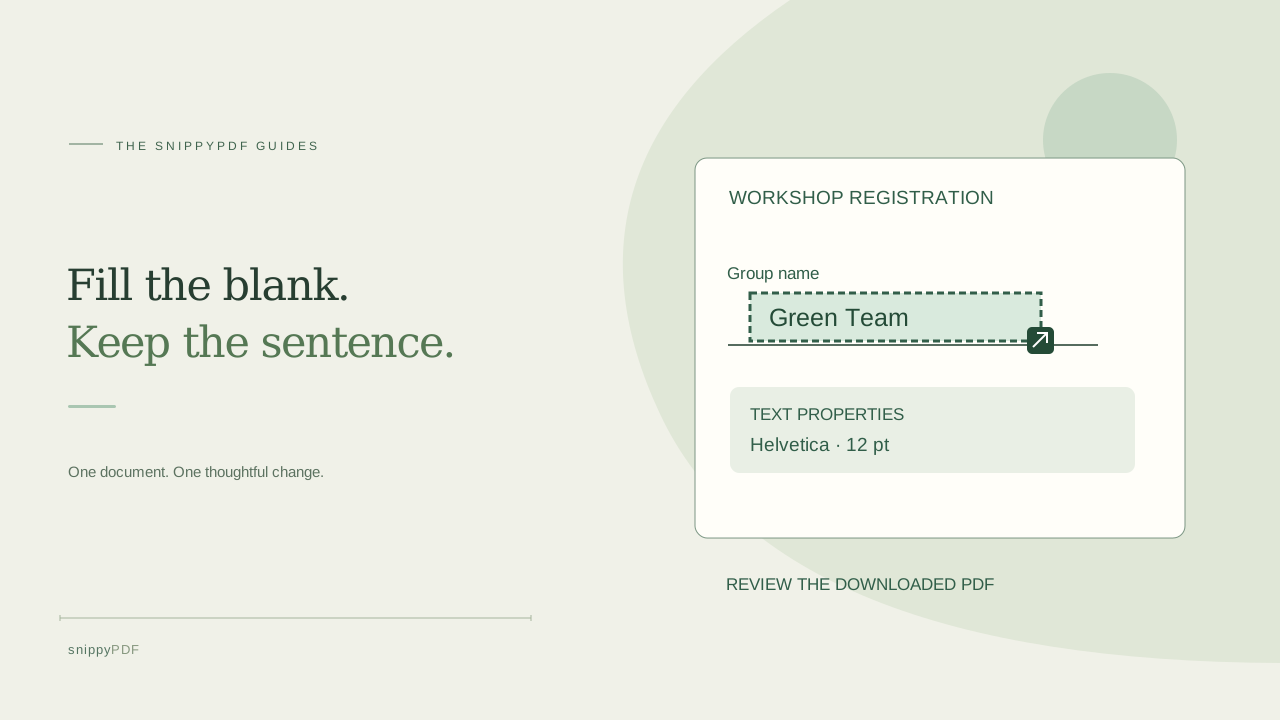
Place a short answer in an empty PDF space, adjust its font and position, and check the downloaded copy on your phone or computer.
Check whether the blank is already a form field
You receive a fictional workshop registration sheet with an empty line beside Group name. Keep an untouched original before working on a copy. Try the document in a PDF reader first: if the line is a real interactive field, use the reader’s field controls and check how the recipient wants the completed form saved. A printed underline may instead be part of an ordinary text sentence or a page image. Clicking the words around it can select an entire existing PDF text run; that is not the same as selecting an empty place to type. This guide covers adding visible text in a blank space, not universal interactive form filling.
Choose the empty space rather than the surrounding words
Open a supported copy in SnippyPDF. Choose Text in an area, then select the small blank region where your answer should appear. On a phone, enlarge the page first so the blank is easy to target. For practice, enter Green Team on the fictional registration line. Do not replace the surrounding sentence merely to reach its underline. Adding a separate text object leaves the original sentence in place; it does not automatically detect a form field or decide which information belongs there. If you accidentally select the wrong place, cancel that entry or use Undo before continuing.
Read the text properties before applying the answer
Use the properties panel to check the content, font, point size and color. A page displayed at a large zoom can make a small font look much larger than it will be in the final PDF. Compare your answer with the nearby printed labels, then fit the page to review the overall balance. Detecting a font name does not guarantee that its embedded characters cover every accent or symbol in your answer. Keep the spelling correct and inspect a supported alternative when necessary. A selected area does not make a long response reflow into the surrounding paragraph; shorten it appropriately or ask for a more suitable source form.
Move and resize the text you added
Apply the new text and select that added item again. Drag it into position; on a phone, press the text and move it carefully, then use the highlighted corner handle to adjust its size. Keep the answer above the line with enough room for letters that descend below the baseline. Check both ends of the answer and neighboring labels after moving it. Undo and Redo help compare the result. These controls act on the added text object: moving existing source text or stretching an entire sentence can change parts of the document you did not intend to edit. Verify which item is selected before dragging.
Distinguish a saved draft from the PDF you will send
Wait for Saved on this device or use Save draft to preserve the applied revision in that browser. A recovery draft is not an email attachment, cloud backup or cross-device PDF. Choose Export PDF and download a separately named copy such as workshop-registration-completed.pdf. The free trial adds Powered by SnippyPDF at the top and bottom of each page. A valid discount entitlement or active paid pass permits clean export within its scope; the one-document pass is limited to one original PDF up to ten pages. Check current pricing and recipient requirements before purchasing or sharing. Keep the untouched original outside browser storage.
Open the downloaded file and check the answer
Open the actual saved PDF in another reader, including Files on your iPhone when that is your workflow. Verify the answer, page count, position, readable size and neighboring text. On a multi-page document, confirm that the answer is on the intended page. If the recipient expects an interactive field, an accessible tagged form or a particular signing method, visible added text may not meet that requirement: ask before submitting. Adding an answer is not secure redaction and does not remove information underneath it. Keep the reviewed copy and original separately, and do not rely on the editor preview alone as proof that your final file is correct.
See supported PDFs · Try the watermarked editor preview
More practical guides
- How to recognize English and Spanish text in the same document photo
- How to split selected PDF pages into separate files
- Turn a paper checklist photo into a PDF you can reuse
- How to rotate one page in a PDF and save the change
- How to insert a photo page into an existing PDF
- How to put front and back photos in one PDF
- How to extract nonconsecutive pages into one PDF
- Make document photos searchable in a PDF without rewriting the page
- Fix sideways document photos before making a PDF or running OCR
- Edit grouped text in a PDF online: a fictional DoorDash receipt example
- A4, Letter or Fit image: which PDF page size should you choose for photos?
- How to check numbers after turning a document photo into a PDF
- How to turn iPhone HEIC photos into a PDF without converting them first
- How to make a working copy of a scanned PDF without losing your original
- How to photograph a paper document for a readable PDF
- How to make a photo-heavy PDF smaller and check the result
- How to turn PDF pages into PNG images for a presentation
- How to add notes and highlights to a PDF
- How to check the edition of a USCIS PDF form
- How to turn phone photos into a PDF you can annotate
- How to correct words in a PDF made from a photo
- How to update a workplace checklist in a PDF
- How to keep PDF quotes and revisions organized
- How to correct a student project cover page in a PDF
- How to check names and accents when editing a PDF
- How to prepare a PDF before signing it
- How to edit existing PDF text without changing the surrounding sentence
- How to replace a PDF image without stretching it or covering nearby text
- Why PDF text will not edit: check the font, text layer and scan
- PDF editing preview versus clean export
- Why a detected PDF font may change when you edit the wording
- Before you send an edited PDF: a practical download-review checklist
- Saved draft or downloaded PDF? How to keep your edits and original
- How to assemble and check an organized PDF packet