Choose scan pages for reviewed OCR, understand what rebuilding removes, and compare the new working PDF with its source before sharing it.
Decide whether you need a rebuilt copy
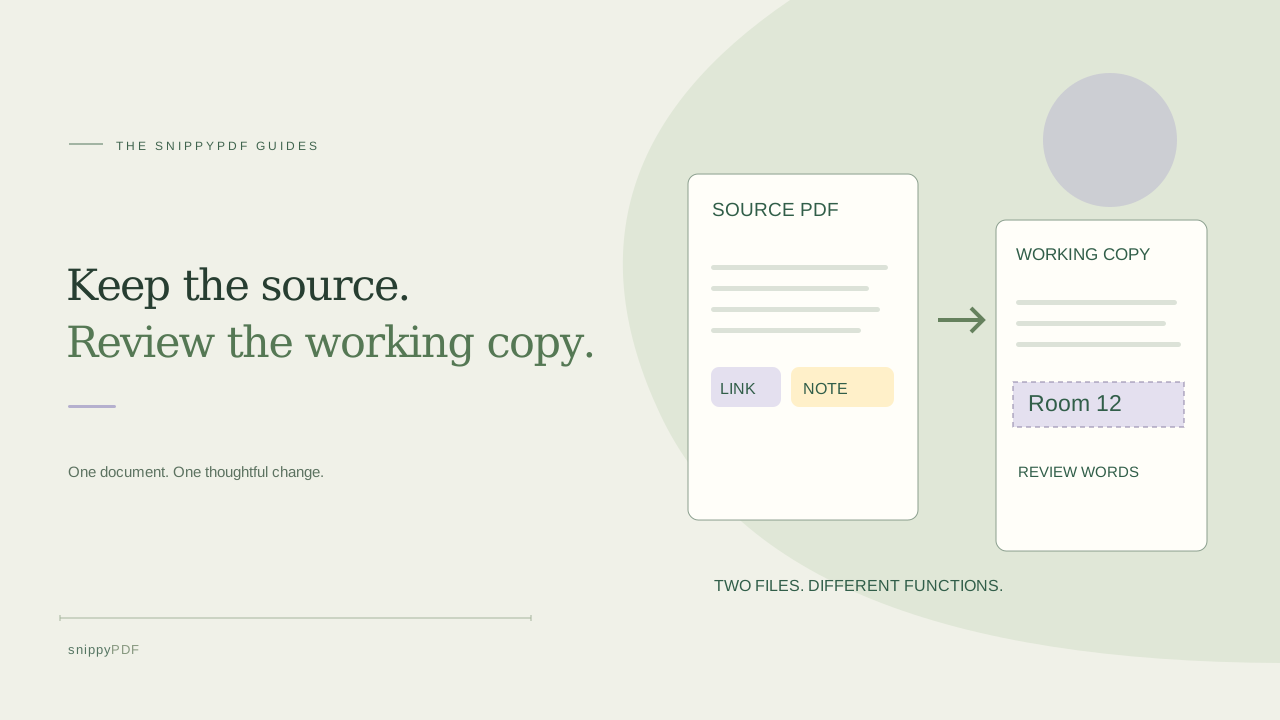
A student has a scanned workshop handout and needs to correct a room label in a separate working version. First open the source in a PDF reader. Try selecting a word and following any useful links. A PDF may contain both page images and real text; its filename does not tell you which. If you only need to reorder pages or add a review note, use a suitable organizer or review tool instead of rebuilding the pages as images. Rebuilding is a deliberate change in document structure, not a harmless save under a different name.
Keep the original and list the features that matter
Save the source separately with a clear name such as workshop-handout-original.pdf. Note its page count, page order, links, comments and bookmarks before starting. SnippyPDF’s scan importer renders selected pages into images: the new copy does not retain original text objects, links, annotations, layers or bookmarks. Interactive comment contents and hidden information should not be expected to survive. Visible marks may appear in rendered pixels, but that is not the same as retaining an interactive note. Keep the original whenever those features or the original record matter.
Import only supported pages you actually need
In Images to PDF, use the scan-page importer for a compatible unsigned, noninteractive PDF up to 25 MB. Select no more than 20 existing pages, subject to pixel and memory limits; a large page can require a smaller batch. A range such as 1-3,5 chooses the first three pages and page five in the file, which may differ from printed page labels. Do not remove signatures or protections to force an unsupported document through. A rebuilt copy does not preserve digital-signature validity or certify that the source is authentic.
Review recognition page by page
After import, check each page image for missing edges, rotation, tiny text or poor resolution. Optional local OCR can recognize words, but the result needs comparison with the original. For editable text, only supported high-confidence words on suitable plain backgrounds are converted, up to 300 per image; remaining words stay pixels. Check dates, quantities, names and accents before accepting or changing anything. Do not infer that every word became editable because one selected label did. If recognition fails on a crucial line, retain the source and obtain a clearer scan rather than guessing its wording.
Save and inspect the actual working PDF
Give the new copy a distinct name such as workshop-handout-working-r01.pdf. Free trial downloads have watermarks; clean export requires valid authorized access or an active paid pass within its scope and limits. Open the downloaded PDF, compare every selected page with the source and confirm the intended page count. Test any text you expected to select or edit, and inspect the visible result of each correction. Browser processing or an on-screen thumbnail does not prove that the saved file contains the right pages or that the original features were retained.
Share the version that matches the task
For a class exercise, the clearly labeled working copy may be appropriate. For a document whose original links, notes or signatures matter, share the suitable original or ask its author for an editable source. Keep a brief revision note explaining what you changed; do not present an altered copy as an untouched scan. Rebuilding and OCR do not provide legal advice, certification, portal acceptance or secure redaction. If private information must be removed, use an appropriate redaction process and verify the result separately. Keep the source and working copy so you can revisit a recognition error later.
See supported PDFs · Try the watermarked editor preview
More practical guides
- How to recognize English and Spanish text in the same document photo
- How to split selected PDF pages into separate files
- Turn a paper checklist photo into a PDF you can reuse
- How to rotate one page in a PDF and save the change
- How to insert a photo page into an existing PDF
- How to put front and back photos in one PDF
- How to extract nonconsecutive pages into one PDF
- Make document photos searchable in a PDF without rewriting the page
- Fix sideways document photos before making a PDF or running OCR
- Edit grouped text in a PDF online: a fictional DoorDash receipt example
- A4, Letter or Fit image: which PDF page size should you choose for photos?
- How to check numbers after turning a document photo into a PDF
- How to turn iPhone HEIC photos into a PDF without converting them first
- How to type on a blank line in a PDF without changing the sentence
- How to photograph a paper document for a readable PDF
- How to make a photo-heavy PDF smaller and check the result
- How to turn PDF pages into PNG images for a presentation
- How to add notes and highlights to a PDF
- How to check the edition of a USCIS PDF form
- How to turn phone photos into a PDF you can annotate
- How to correct words in a PDF made from a photo
- How to update a workplace checklist in a PDF
- How to keep PDF quotes and revisions organized
- How to correct a student project cover page in a PDF
- How to check names and accents when editing a PDF
- How to prepare a PDF before signing it
- How to edit existing PDF text without changing the surrounding sentence
- How to replace a PDF image without stretching it or covering nearby text
- Why PDF text will not edit: check the font, text layer and scan
- PDF editing preview versus clean export
- Why a detected PDF font may change when you edit the wording
- Before you send an edited PDF: a practical download-review checklist
- Saved draft or downloaded PDF? How to keep your edits and original
- How to assemble and check an organized PDF packet