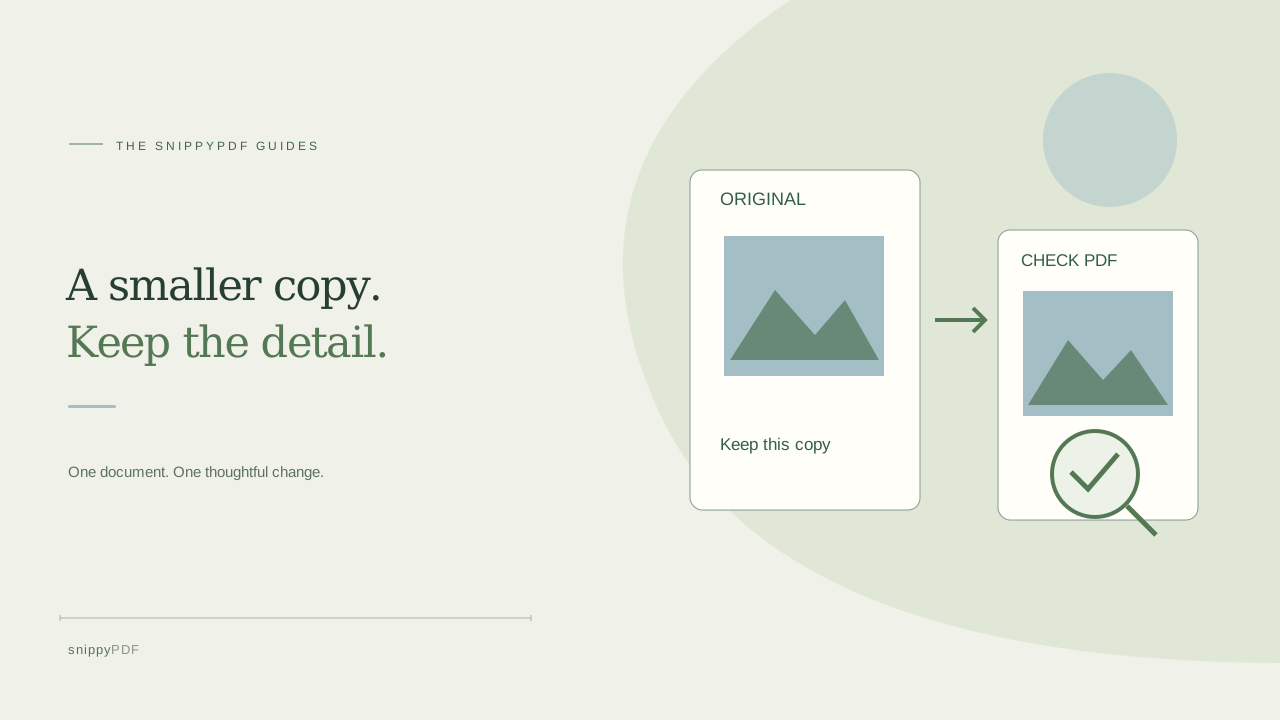
Prepare a smaller copy of a photo-heavy PDF for sharing, compare the saved file size, and inspect names, numbers and image detail before sending it.
Start with the recipient’s actual file limit
A freelancer has a fictional workshop proposal with several photographs. The recipient asks for one PDF below an attachment limit. First check that exact limit and whether a download link is acceptable. File size is different from page count: a short PDF with large photographs can outweigh a longer text document. Save the original separately, then work on a clearly named copy such as workshop-proposal-r03-small.pdf. Do not replace your only high-quality copy while experimenting.
Choose compression only when photographs are the likely cause
SnippyPDF’s Review PDF tool can recompress compatible embedded RGB photographs. It does not promise a particular percentage reduction or a target file size. Text-only files, already optimized photographs, unsupported image encodings or protected documents may not shrink. The operation is lossy: it trades some photographic detail for fewer bytes. It preserves PDF text and page dimensions rather than converting every page into a picture. This does not improve a blurry photograph, recognize scanned words or make a PDF accessible.
Open a supported working copy
Use Review PDF with a compatible PDF up to 25 MiB and 100 pages. Encrypted files, digital signatures, interactive forms and active actions are refused. Ask the document owner for a suitable copy instead of removing protections or signatures. Processing takes place in the browser and is subject to image and memory limits. Keep the original and avoid using an irreplaceable document for your first check. If your recipient has special document requirements, verify those requirements before changing the file.
Compress compatible photographs and save the output
Find Compress compatible photographs in Review PDF. Use the free watermarked option to try the result, or the clean option when your export access permits it. Free downloads retain the trial watermark; a paid pass has a document scope and expiration. Wait for processing, save the resulting PDF, and check its size in your file manager. An image-optimization count is not proof that the final file meets the attachment limit. PDF overhead and watermarks can offset an image saving, and some files cannot shrink.
Compare legibility before comparing convenience
Open the actual saved PDF beside the original. Inspect photographs at the size the recipient will use, then zoom into small labels, prices, accents and fine lines. Check that all pages and their orientation are correct and that selectable text still behaves as expected. Review any notes or highlights you need to retain. Watch for blurry edges or blocks in photographs. If an important detail becomes difficult to read, keep the better copy and choose a different sharing method. A smaller file is useful only when it still serves the document task.
If the file is still too large, choose a suitable next step
Do not repeatedly recompress the same copy and assume quality will recover. Return to the original. If the recipient permits selected pages, extract only the relevant pages with Organize PDF and verify the new file; otherwise keep the complete document. You can also ask whether an approved sharing link or a revised file from the original author is acceptable. Reopen the final attachment before sending, check the exact byte limit and filename, and keep both the original and the version you actually shared. Compression is not secure redaction and does not guarantee acceptance by a portal.
See supported PDFs · Try the watermarked editor preview
More practical guides
- How to recognize English and Spanish text in the same document photo
- How to split selected PDF pages into separate files
- Turn a paper checklist photo into a PDF you can reuse
- How to rotate one page in a PDF and save the change
- How to insert a photo page into an existing PDF
- How to put front and back photos in one PDF
- How to extract nonconsecutive pages into one PDF
- Make document photos searchable in a PDF without rewriting the page
- Fix sideways document photos before making a PDF or running OCR
- Edit grouped text in a PDF online: a fictional DoorDash receipt example
- A4, Letter or Fit image: which PDF page size should you choose for photos?
- How to check numbers after turning a document photo into a PDF
- How to turn iPhone HEIC photos into a PDF without converting them first
- How to type on a blank line in a PDF without changing the sentence
- How to make a working copy of a scanned PDF without losing your original
- How to photograph a paper document for a readable PDF
- How to turn PDF pages into PNG images for a presentation
- How to add notes and highlights to a PDF
- How to check the edition of a USCIS PDF form
- How to turn phone photos into a PDF you can annotate
- How to correct words in a PDF made from a photo
- How to update a workplace checklist in a PDF
- How to keep PDF quotes and revisions organized
- How to correct a student project cover page in a PDF
- How to check names and accents when editing a PDF
- How to prepare a PDF before signing it
- How to edit existing PDF text without changing the surrounding sentence
- How to replace a PDF image without stretching it or covering nearby text
- Why PDF text will not edit: check the font, text layer and scan
- PDF editing preview versus clean export
- Why a detected PDF font may change when you edit the wording
- Before you send an edited PDF: a practical download-review checklist
- Saved draft or downloaded PDF? How to keep your edits and original
- How to assemble and check an organized PDF packet