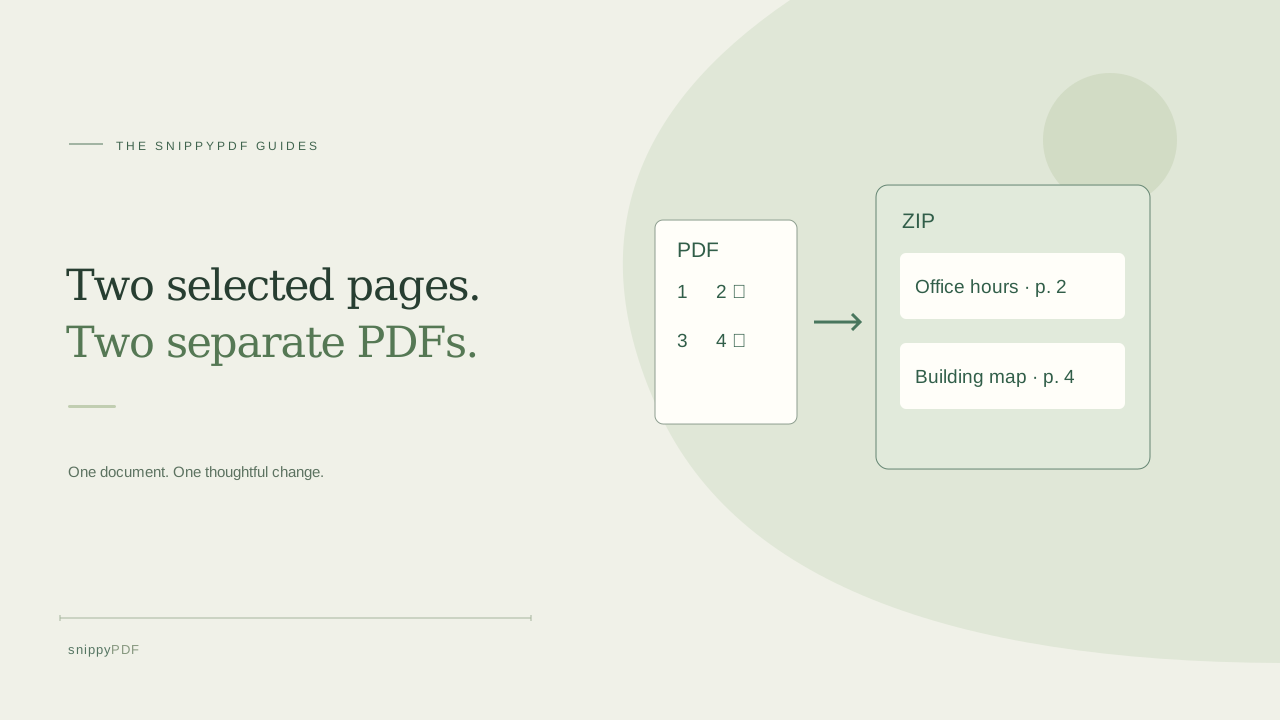
Save specific pages as individual PDFs in a ZIP, identify each extracted file, and check what you are about to send.
Choose the sheets that need their own files
A small property office has a four-page reference packet. It needs to send the office hours and the building map separately, but page 3 contains an internal checklist. Open the source and identify the two sheets by their headings and thumbnails. For this packet they are the second and fourth pages in the file. Use their actual positions, even if the document prints different page numbers.
Select the pages and download the ZIP
Open Organize PDF and add the packet. Enter 2, 4 in Page range and choose Apply selection. Confirm that only the intended thumbnails are selected. Choose Split selected to download a ZIP with two separate one-page PDFs. The trial adds watermarks. An eligible pass or discount gives access to a clean export. Use a compatible static PDF up to 25 MB. Encrypted files, digitally signed PDFs and interactive forms are unsupported.
Unzip the files and name them by what they contain
Extract the ZIP into a new folder. The names page-001.pdf and page-002.pdf follow the order shown in the organizer. They identify the first and second files in the export, so page-002.pdf contains the map from source page 4. Open both files before renaming them to office-hours.pdf and building-map.pdf. This helps prevent sending the wrong attachment when you upload each PDF to a different place.
Check the actual attachments before sharing
Confirm that each file has one page, its heading matches its filename and nothing is cut off. Check that the internal checklist is absent from the files you intend to send. For compatible files the tool rebuilds the selected pages into copies, so keep the source if you need its bookmarks, links or annotations. When a recipient wants both sheets together in a single PDF, use Extract selected with the same selection.
See supported PDFs · Try the watermarked editor preview
More practical guides
- How to recognize English and Spanish text in the same document photo
- Turn a paper checklist photo into a PDF you can reuse
- How to rotate one page in a PDF and save the change
- How to insert a photo page into an existing PDF
- How to put front and back photos in one PDF
- How to extract nonconsecutive pages into one PDF
- Make document photos searchable in a PDF without rewriting the page
- Fix sideways document photos before making a PDF or running OCR
- Edit grouped text in a PDF online: a fictional DoorDash receipt example
- A4, Letter or Fit image: which PDF page size should you choose for photos?
- How to check numbers after turning a document photo into a PDF
- How to turn iPhone HEIC photos into a PDF without converting them first
- How to type on a blank line in a PDF without changing the sentence
- How to make a working copy of a scanned PDF without losing your original
- How to photograph a paper document for a readable PDF
- How to make a photo-heavy PDF smaller and check the result
- How to turn PDF pages into PNG images for a presentation
- How to add notes and highlights to a PDF
- How to check the edition of a USCIS PDF form
- How to turn phone photos into a PDF you can annotate
- How to correct words in a PDF made from a photo
- How to update a workplace checklist in a PDF
- How to keep PDF quotes and revisions organized
- How to correct a student project cover page in a PDF
- How to check names and accents when editing a PDF
- How to prepare a PDF before signing it
- How to edit existing PDF text without changing the surrounding sentence
- How to replace a PDF image without stretching it or covering nearby text
- Why PDF text will not edit: check the font, text layer and scan
- PDF editing preview versus clean export
- Why a detected PDF font may change when you edit the wording
- Before you send an edited PDF: a practical download-review checklist
- Saved draft or downloaded PDF? How to keep your edits and original
- How to assemble and check an organized PDF packet