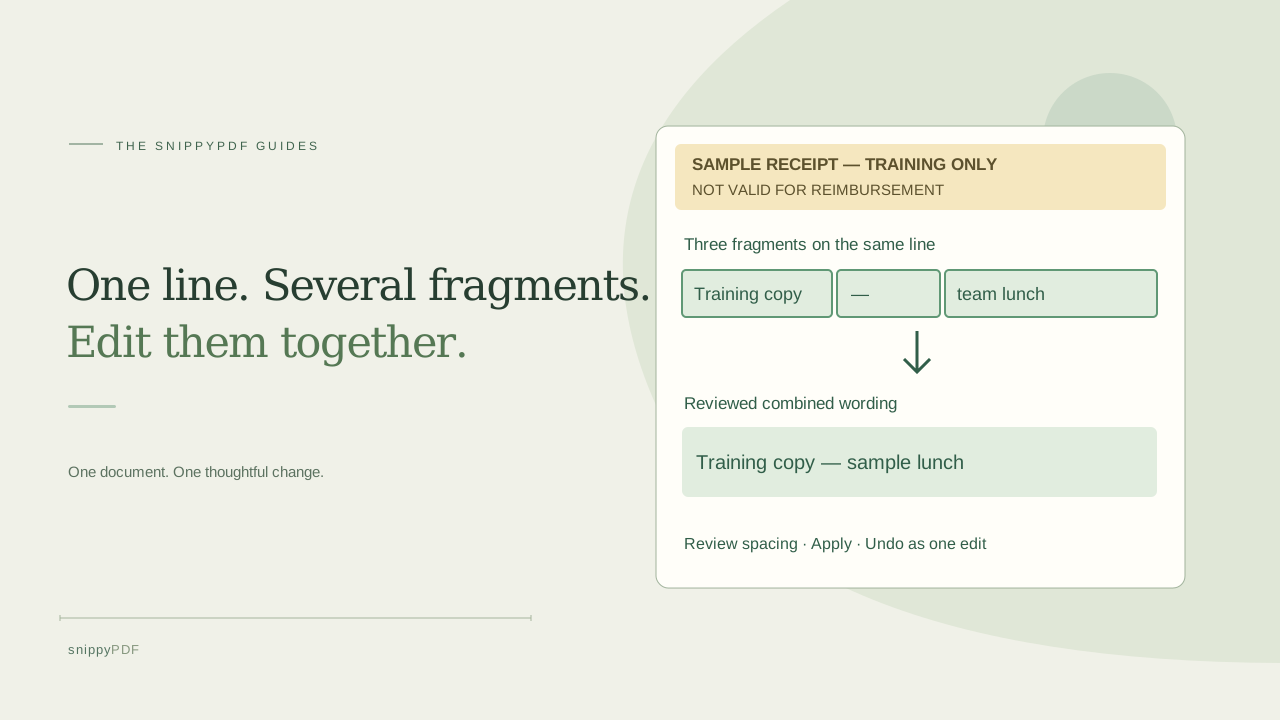
Edit compatible fragments on one PDF line together in your browser, without installing software. Review a fictional receipt note and the downloaded copy.
Why one visible line selects as fragments
A sentence can look like one line in a PDF while being stored as several separate text fragments. Selecting one fragment may give you only part of the wording. SnippyPDF's group text editing lets you review compatible adjacent fragments and edit them together directly in your browser—without downloading or installing editing software. You still download the finished PDF when you want a file to share.
What counts as a text group?
The editor looks for nearby editable fragments on the same line with compatible font, size and color. It offers a combined preview when a supported group is available. This is more precise than assuming that everything across a page belongs to the same sentence. Different columns, rotated text and mixed styles may remain separate. It is not whole-paragraph reflow or a way to make every PDF editable.
Example: a fictional DoorDash receipt training copy
Suppose you are preparing a software demonstration using a fictional DoorDash receipt layout. A clearly labeled sample note reads “Training copy — team lunch”. The PDF stores that note in several adjacent fragments. You want the note to say “Training copy — sample lunch” while keeping the surrounding layout readable. Use invented names, dates and order identifiers, and mark the page “SAMPLE — NOT VALID FOR REIMBURSEMENT”. Do not use a real order link. This example demonstrates PDF text behavior; it does not verify, recreate or certify a DoorDash transaction. For an incorrect real receipt, request a corrected record from the issuer rather than changing transaction facts.
How to edit the line together
- Keep the source PDF and open a working copy in the online editor at /editor/.
- Select an editable fragment in the sample note. If a supported group is found, look for “Edit text together”.
- Read the complete group preview. Confirm it contains only the note you intend to change, not a neighboring label or amount.
- Choose “Use this text group”, then change the wording to “Training copy — sample lunch”. Apply the edit using the editor's displayed controls.
- Check the line's spacing, accents and nearby content. Longer wording may not fit the original space. Use Undo if the result is wrong; a group edit can be undone as one operation.
- Download the result and reopen that exact file in another PDF reader. Confirm the sample label and revised note are visible and nothing nearby was covered.
Visible URL text is not the destination
A receipt may display a long order URL broken into fragments. Group editing can change supported visible text, but it does not change the hyperlink's destination. Do not assume that changing a displayed address changes where a click goes. Our illustration uses a fictional note instead of a real order URL to avoid exposing private transaction information.
Fonts, scans and exports
The editor reuses supported original font glyphs when available; replacement characters may require a fallback. Review the result rather than promising an identical font. A photo or scan is a different case: pixels are not automatically editable text. The separate reviewed OCR workflow can convert supported recognized words, with its own limits; grouping is not a substitute for OCR. Trial downloads are free and watermarked. A clean export requires an active paid pass or other valid authorized access. Group editing does not remove those export conditions. Before sharing, compare the original with the downloaded copy. Use the related download-review and font guides below for a final check. DoorDash is a third-party brand. This independent tutorial is not affiliated with or endorsed by DoorDash.
See supported PDFs · Try the watermarked editor preview
More practical guides
- How to recognize English and Spanish text in the same document photo
- How to split selected PDF pages into separate files
- Turn a paper checklist photo into a PDF you can reuse
- How to rotate one page in a PDF and save the change
- How to insert a photo page into an existing PDF
- How to put front and back photos in one PDF
- How to extract nonconsecutive pages into one PDF
- Make document photos searchable in a PDF without rewriting the page
- Fix sideways document photos before making a PDF or running OCR
- A4, Letter or Fit image: which PDF page size should you choose for photos?
- How to check numbers after turning a document photo into a PDF
- How to turn iPhone HEIC photos into a PDF without converting them first
- How to type on a blank line in a PDF without changing the sentence
- How to make a working copy of a scanned PDF without losing your original
- How to photograph a paper document for a readable PDF
- How to make a photo-heavy PDF smaller and check the result
- How to turn PDF pages into PNG images for a presentation
- How to add notes and highlights to a PDF
- How to check the edition of a USCIS PDF form
- How to turn phone photos into a PDF you can annotate
- How to correct words in a PDF made from a photo
- How to update a workplace checklist in a PDF
- How to keep PDF quotes and revisions organized
- How to correct a student project cover page in a PDF
- How to check names and accents when editing a PDF
- How to prepare a PDF before signing it
- How to edit existing PDF text without changing the surrounding sentence
- How to replace a PDF image without stretching it or covering nearby text
- Why PDF text will not edit: check the font, text layer and scan
- PDF editing preview versus clean export
- Why a detected PDF font may change when you edit the wording
- Before you send an edited PDF: a practical download-review checklist
- Saved draft or downloaded PDF? How to keep your edits and original
- How to assemble and check an organized PDF packet