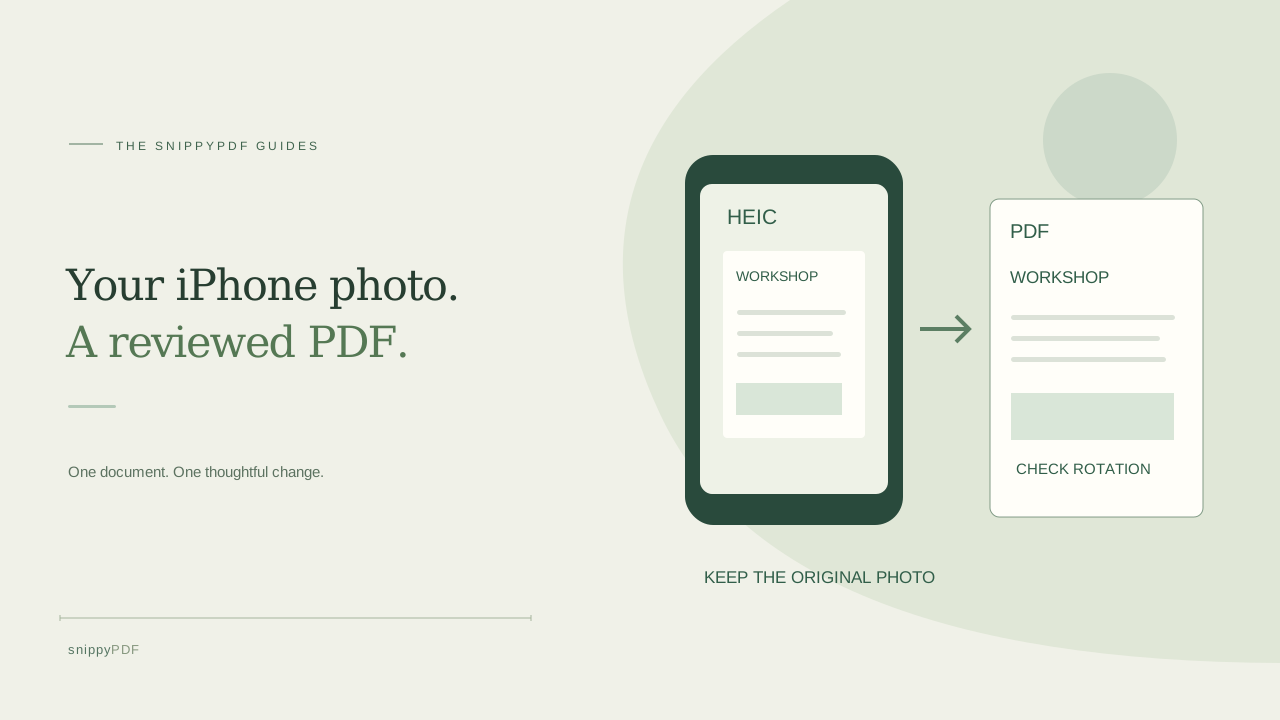
Choose HEIC photos on your iPhone, check rotation and page order, and save a reviewed PDF with the right export option.
Start with the photo, not the PDF picker
You photographed a fictional workshop handout on your iPhone and now need to send it as a PDF. The photo may be stored as HEIC rather than JPG. Keep the original in Photos or Files. In SnippyPDF, open Images to PDF and choose Choose JPG, PNG or HEIC images, then select the photo from the picker. The editor’s Open PDF button expects an existing PDF; it is a different entry point. You do not need to change the camera settings or manually make a JPEG before trying a supported HEIC or HEIF still image. Selection in a browser does not itself mean that a file is uploaded.
Allow conversion and check the still image
SnippyPDF converts supported HEIC/HEIF photos on your device. It first tries the browser’s decoder and can load a local conversion fallback when needed. Let the page finish preparing the photo and keep the tab open. Only the primary still image is used: Live Photo video is not imported. Check the thumbnail before continuing, especially a portrait photo or a photograph taken with the phone held sideways. Rotate the page with the tool’s rotation controls if needed. A converted preview does not certify that every HEIF variant or damaged file can be read; a decoding error means you should keep the source and try an ordinary JPG or PNG copy.
Check file size as well as megapixels
The current image tool accepts up to 20 images, with a 15 MB file limit for each, 60 MB combined and 60 megapixels combined. Each photo must also fit the 25-megapixel ceiling. A small HEIC file can still expand into a large image in memory, so compressed file size alone is not enough. A standard 24-megapixel iPhone photo can fit this pixel ceiling, but a full-resolution 48-megapixel photo does not. If a photo is rejected, export a smaller copy with the device’s photo tools while retaining enough detail for the recipient to read. Do not crop required text or corners merely to reduce the size. The file picker may supply a converted photo rather than its original format; inspect the result either way.
Choose page order, orientation and margins
Add the other handout photos, then use the order and rotation controls to arrange them. Each image becomes one PDF page. Choose a page size and orientation appropriate to the recipient, or use Fit image when you want a page based on the image dimensions. White margins can help separate the photo from the page edge, but they do not straighten perspective or restore missing text. Compare all four edges and important small print in the preview. For the workshop example, put the schedule before the materials list, rather than trusting the phone’s selection order. Keep the original photos separately from the PDF you create.
Use text recognition only when it helps the task
Converting a photo to PDF does not automatically turn every printed word into editable text. Optional English/Spanish text recognition is available after preparation. On flat, plain-background document photos, review recognized words against the original before choosing supported-word conversion and Open in editor. Up to 300 high-confidence, font-supported words per image can become editable PDF text; other words stay pixels. A busy background, handwriting, glare or a folded page can make recognition unreliable. For a handout that only needs to be read, an accurately framed photo PDF may be enough. Review recognition carefully before relying on a name, date or quantity, and never treat an OCR guess as source information.
Download and inspect the actual PDF
Choose Download PDF to save the assembled copy, or Open in editor if you need supported edits first. Free trial downloads include Powered by SnippyPDF at the top and bottom of every page. Clean export needs a valid discount entitlement or paid pass within its scope: the $2.99 document pass covers one original PDF up to ten pages; the $4.49 pass covers unlimited supported documents for seven days. Neither renews automatically. In Safari, open the actual downloaded file from Downloads or Files and verify page count, rotation, readable details and watermark status. Confirm the recipient’s file and signing requirements separately. A local browser preview is not proof that the PDF was downloaded, sent or accepted.
See supported PDFs · Try the watermarked editor preview
More practical guides
- How to recognize English and Spanish text in the same document photo
- How to split selected PDF pages into separate files
- Turn a paper checklist photo into a PDF you can reuse
- How to rotate one page in a PDF and save the change
- How to insert a photo page into an existing PDF
- How to put front and back photos in one PDF
- How to extract nonconsecutive pages into one PDF
- Make document photos searchable in a PDF without rewriting the page
- Fix sideways document photos before making a PDF or running OCR
- Edit grouped text in a PDF online: a fictional DoorDash receipt example
- A4, Letter or Fit image: which PDF page size should you choose for photos?
- How to check numbers after turning a document photo into a PDF
- How to type on a blank line in a PDF without changing the sentence
- How to make a working copy of a scanned PDF without losing your original
- How to photograph a paper document for a readable PDF
- How to make a photo-heavy PDF smaller and check the result
- How to turn PDF pages into PNG images for a presentation
- How to add notes and highlights to a PDF
- How to check the edition of a USCIS PDF form
- How to turn phone photos into a PDF you can annotate
- How to correct words in a PDF made from a photo
- How to update a workplace checklist in a PDF
- How to keep PDF quotes and revisions organized
- How to correct a student project cover page in a PDF
- How to check names and accents when editing a PDF
- How to prepare a PDF before signing it
- How to edit existing PDF text without changing the surrounding sentence
- How to replace a PDF image without stretching it or covering nearby text
- Why PDF text will not edit: check the font, text layer and scan
- PDF editing preview versus clean export
- Why a detected PDF font may change when you edit the wording
- Before you send an edited PDF: a practical download-review checklist
- Saved draft or downloaded PDF? How to keep your edits and original
- How to assemble and check an organized PDF packet