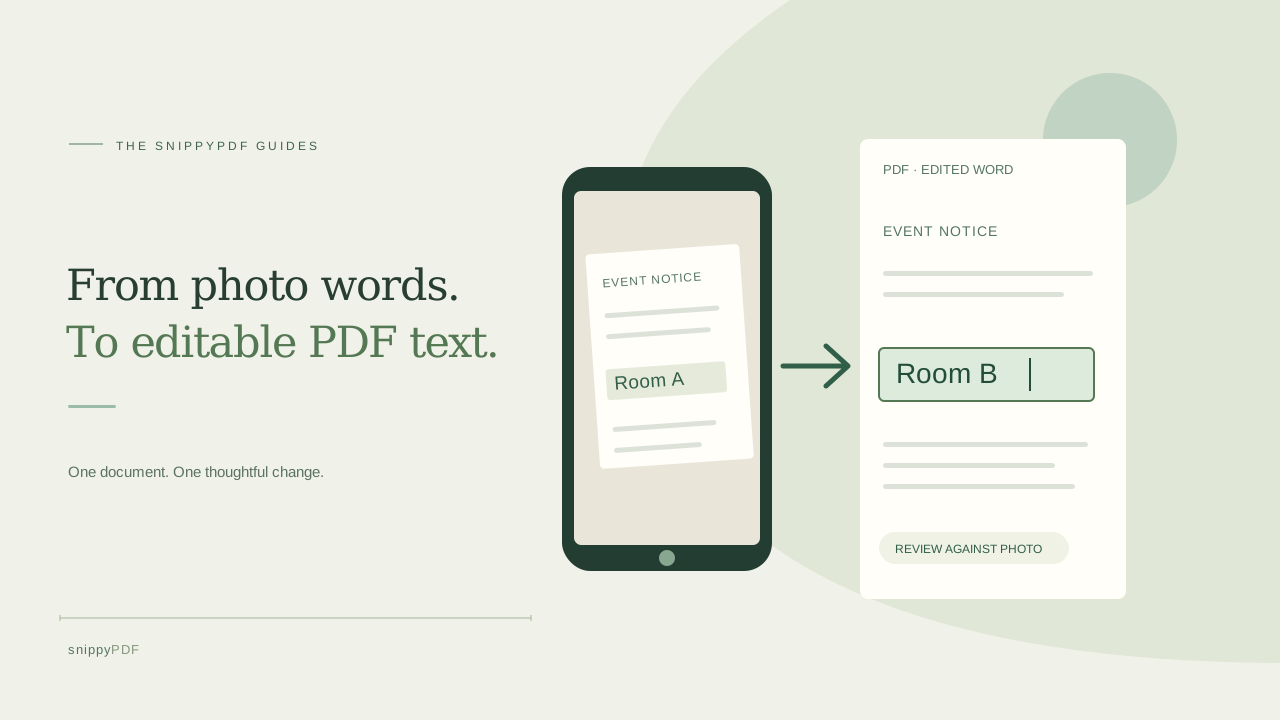
Review OCR on a JPG or PNG photo, turn supported words into editable PDF text, make a small correction, and verify the downloaded result.
Decide whether the photo is the right starting point
Imagine a photo of a fictional neighborhood event notice with the wrong room label. If you have the original document, correct that source and export a fresh PDF; its layout and text will usually be easier to preserve. If the photo is all you have, keep an untouched copy before trying OCR. Only change a document you are authorized to edit. Do not use this workflow to make an issued record appear to say something it did not say.
Prepare a clear JPG or PNG image
The workflow starts in Images to PDF with a JPG or PNG, or selected PDF scan pages through Import scan pages. Imported scan pages create a rebuilt copy, leaving original links, annotations, text layers and bookmarks behind. Lay the paper flat, use even light, photograph it from above, and check that every edge and small word is readable. A shadow, crease or patterned background can make both recognition and the covered patch look wrong. Retake a blurry photo rather than expecting PDF conversion to restore missing detail. Keep the original image for comparison.
Run OCR and check the words before conversion
Choose the photo and run the optional browser-local English or Spanish OCR. Compare the recognized words with the image, especially names, accents, room numbers and dates. OCR can confuse a letter with a digit or drop punctuation. A text transcript is useful for checking recognition, but it does not mean every photographed word is already editable in the PDF. If the word you need is wrong or missing, correct the recognition where the tool permits, improve the photo, or use the source document instead of silently accepting it.
Convert supported recognized words into PDF text
For a flat photo on a plain background, select Make recognized words editable in the PDF. SnippyPDF can cover the original pixels for up to 300 high-confidence recognized words that its PDF font supports and place visible PDF text at those positions. Lower-confidence words and unsupported characters remain part of the picture. Look at the preview for pale rectangles, shifted baselines or uneven spacing. This is a best-effort visible replacement, not whole-page reconstruction or secure removal of the old pixels.
Open the result in the editor and make a small change
Choose Open in editor, select a converted text object and inspect its Content field before applying a correction, such as changing a fictional room label from Room A to Room B. Change one short word or label at a time; a longer replacement does not automatically reflow the surrounding page. Zoom in to inspect the corrected text and its background, then zoom out to check the page as a whole. If the word remains image pixels or the font cannot represent it, return to the source photo or another suitable workflow. Adding a text box over a photo is a separate annotation, not an edit to the photographed word.
Reopen the actual PDF download
Download the revised PDF and open that file in another reader. Check that the changed word is selectable, spelled correctly and positioned well; compare the full page with the untouched photo. Inspect any other converted words too, because OCR may have changed text you did not intend to edit. The free SnippyPDF download carries a visible watermark; clean export requires authorized access, and sign in under Export PDF to buy a pass. Ask the recipient what format they accept before relying on the file, and keep a clearly named revised copy alongside the original.
See supported PDFs · Try the watermarked editor preview
More practical guides
- How to recognize English and Spanish text in the same document photo
- How to split selected PDF pages into separate files
- Turn a paper checklist photo into a PDF you can reuse
- How to rotate one page in a PDF and save the change
- How to insert a photo page into an existing PDF
- How to put front and back photos in one PDF
- How to extract nonconsecutive pages into one PDF
- Make document photos searchable in a PDF without rewriting the page
- Fix sideways document photos before making a PDF or running OCR
- Edit grouped text in a PDF online: a fictional DoorDash receipt example
- A4, Letter or Fit image: which PDF page size should you choose for photos?
- How to check numbers after turning a document photo into a PDF
- How to turn iPhone HEIC photos into a PDF without converting them first
- How to type on a blank line in a PDF without changing the sentence
- How to make a working copy of a scanned PDF without losing your original
- How to photograph a paper document for a readable PDF
- How to make a photo-heavy PDF smaller and check the result
- How to turn PDF pages into PNG images for a presentation
- How to add notes and highlights to a PDF
- How to check the edition of a USCIS PDF form
- How to turn phone photos into a PDF you can annotate
- How to update a workplace checklist in a PDF
- How to keep PDF quotes and revisions organized
- How to correct a student project cover page in a PDF
- How to check names and accents when editing a PDF
- How to prepare a PDF before signing it
- How to edit existing PDF text without changing the surrounding sentence
- How to replace a PDF image without stretching it or covering nearby text
- Why PDF text will not edit: check the font, text layer and scan
- PDF editing preview versus clean export
- Why a detected PDF font may change when you edit the wording
- Before you send an edited PDF: a practical download-review checklist
- Saved draft or downloaded PDF? How to keep your edits and original
- How to assemble and check an organized PDF packet