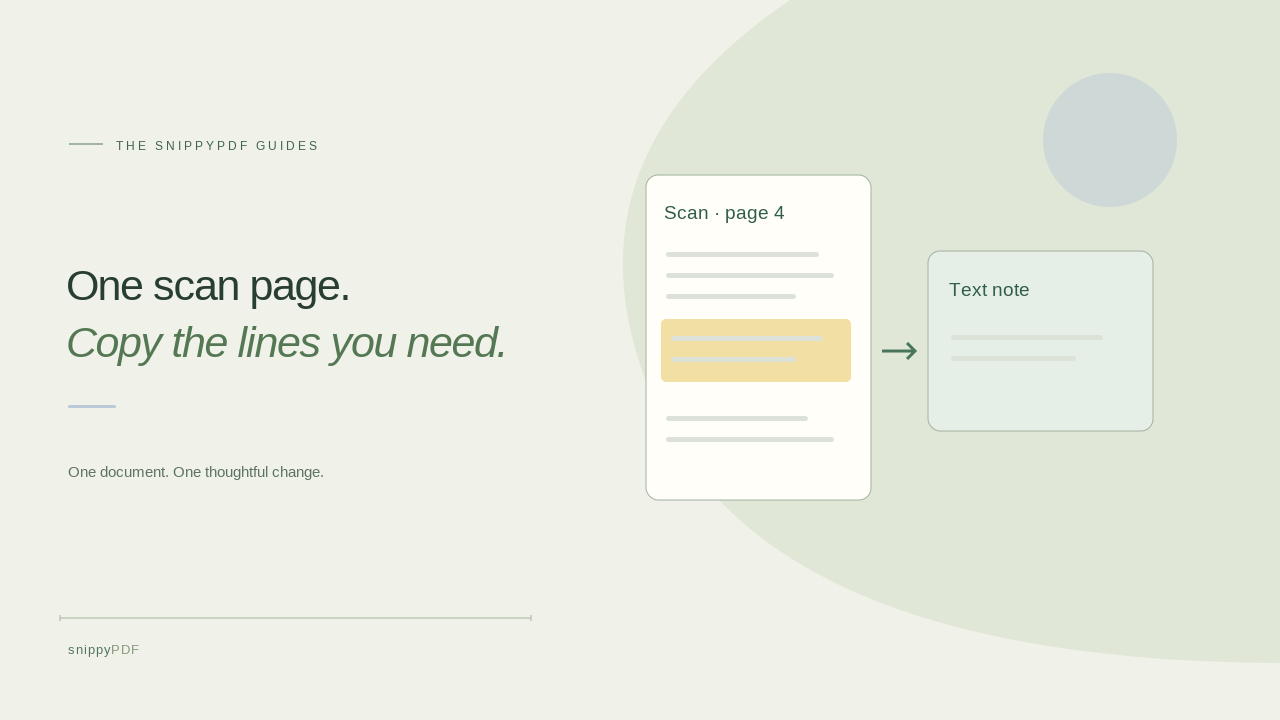
Use OCR on a single page of a scanned PDF, copy the lines you need, and check them against the original.
Find the exact line in the original
Suppose you need two equipment pickup instructions from a scanned workshop booklet. Open the PDF and find the lines under the heading Equipment pickup. First try selecting and copying a few words in your PDF reader. If you get usable text, paste it into a note and compare it with the scan. If the page behaves like one picture, use optical character recognition, or OCR, to get text you can copy.
Import only the page you need
Open Images to PDF and find Import scan pages. Add the scanned PDF, then enter the page position in Pages. A cover can put printed page 3 in the fourth position, so enter 4 in that case. Read the confirmation about rebuilding the selected page before importing. The importer accepts compatible unsigned, noninteractive scanned PDFs up to 25 MB. Importing one page avoids recognizing unrelated pages and leaves the source file on your device.
Copy the recognition result to a note
Choose Recognize text beside the imported page thumbnail. When the transcript appears, press Copy recognized text and paste it into a plain-text note. If the browser blocks the clipboard button, try selecting text directly in the OCR text output. Find the two lines you need in the pasted result. If the source has columns, compare the order line by line. OCR can combine nearby text or misread a word at the edge of a column.
Check the excerpt before you send it
Compare the excerpt with the original at a readable zoom. Pay special attention to the time, the room name and words such as except or only that change the instruction. If a line is clipped or unreadable, refer to a clearer copy before quoting it. Once the note matches the source, paste the checked lines into your message. You can finish this task without downloading a new PDF.
See supported PDFs · Try the watermarked editor preview
More practical guides
- How to make a photo appendix for a PDF quote
- How to check a photo PDF before printing
- How to replace one page in a PDF
- How to reorder pages in an existing PDF
- How to remove a blank page from a PDF
- How to recognize English and Spanish text in the same document photo
- How to split selected PDF pages into separate files
- Turn a paper checklist photo into a PDF you can reuse
- How to rotate one page in a PDF and save the change
- How to insert a photo page into an existing PDF
- How to put front and back photos in one PDF
- How to extract nonconsecutive pages into one PDF
- Make document photos searchable in a PDF without rewriting the page
- Fix sideways document photos before making a PDF or running OCR
- Edit grouped text in a PDF online: a fictional DoorDash receipt example
- A4, Letter or Fit image: which PDF page size should you choose for photos?
- How to check numbers after turning a document photo into a PDF
- How to turn iPhone HEIC photos into a PDF without converting them first
- How to type on a blank line in a PDF without changing the sentence
- How to make a working copy of a scanned PDF without losing your original
- How to photograph a paper document for a readable PDF
- How to make a photo-heavy PDF smaller and check the result
- How to turn PDF pages into PNG images for a presentation
- How to add notes and highlights to a PDF
- How to check the edition of a USCIS PDF form
- How to turn phone photos into a PDF you can annotate
- How to correct words in a PDF made from a photo
- How to update a workplace checklist in a PDF
- How to keep PDF quotes and revisions organized
- How to correct a student project cover page in a PDF
- How to check names and accents when editing a PDF
- How to prepare a PDF before signing it
- How to edit existing PDF text without changing the surrounding sentence
- How to replace a PDF image without stretching it or covering nearby text
- Why PDF text will not edit: check the font, text layer and scan
- PDF editing preview versus clean export
- Why a detected PDF font may change when you edit the wording
- Before you send an edited PDF: a practical download-review checklist
- Saved draft or downloaded PDF? How to keep your edits and original
- How to assemble and check an organized PDF packet